![nordicbim_logo.png]](https://www.nordicbim.com/hs-fs/hubfs/Imported%20images/nordicbim_logo.png?height=40&name=nordicbim_logo.png)
The free Project Compare add-on helps in these situations. It is a standalone application and extension that works in Archicad from version 25 onwards.
Install the app
- Download the app, https://www.graphisoft.com/en-fi/downloads/add-ons/archicad-project-compare/ (the app language English)
- Unzip the ZIP file:
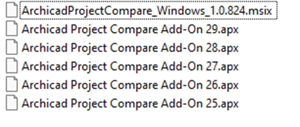
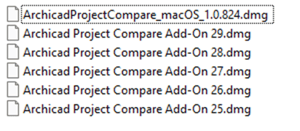
Install the app:
On Windows, double-click the.msixfile
On Mac, openArchicadProjectCompare_macOS_*.dmgand drag the app to the Applications folder.
Then install the extensions: copy the.apxfile with the correct version number to the Archicad folders:
On Windows,C:\Program Files\Archicad [version]\Archicad Extensions
On Mac, open the version.dmgand drag the extensionApplications\Archicad [version]\Add-Ons - Open the baseline version of your project in Archicad (either in the older Archicad version, or before editing the libraries or view settings).
- Save the Project Compare file with File > Prepare for Archicad Project Compare - give the file a clear name, for example,
<projectname>_<dvm>.pmax. - When the updated version of the project is ready, open it and save a Project compare file from it as well – give the file a clear name, for example
<projectname>_<date>.pmax. - Now open the Project Compare app – log in with your Graphisoft ID
- Open the Project Compare
.pmaxfiles by dragging them into the window, or by clicking the box and browsing to the files from your directory - Press Start in the bottom right corner
- When the check is complete, you will receive the layout-specific comparison results, where the differences are marked with the following identifiers.
|
icon |
what it means |
|
|
No difference: the layout did not change after migration |
|
|
Low priority: a few minor differences only |
|
|
Medium priority: several minor differences detected |
|
|
High priority: major differences detected |
|
|
This layout does not have a pair - it is missing from one of the two project versions |


- You can view the differences on the layout by moving the reference frame attached to the cursor in the comparison view. The area of the frame appears on the right in version views. In the comparison view, differences are indicated by a highlight color.
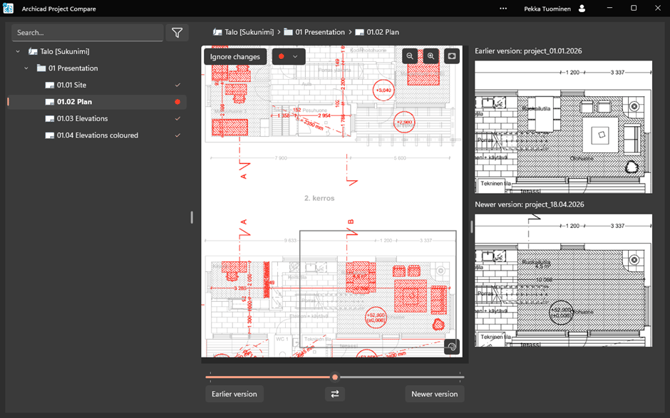
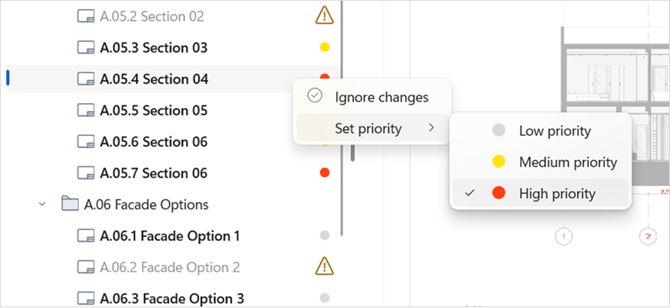
- Depending on how important the changes are, change the layout icon to a suitable one from the context menu of the right mouse button, or the buttons at the top of the comparison view:
- Once the statuses of the layouts are clear, open Archicad alongside Project Compare and make the necessary corrections to the model, or refine your revision description text.
Project Compare was released in conjunction with Archicad 29, and the application will be developed to be more versatile in the future according to demand.