![nordicbim_logo.png]](https://www.nordicbim.com/hs-fs/hubfs/Imported%20images/nordicbim_logo.png?height=40&name=nordicbim_logo.png)
Why Archicad Gets Slow With Trace & Reference
Trace & Reference loads additional model data, often from heavy source views (sections, layouts, large plans). Archicad has to redraw both the active view and the trace overlay, which can cause lag, especially in large teamwork files or detailed renovation projects.

Most Effective Fixes
1. Use a Simpler Source View for Trace
Instead of tracing from a heavy Section or Detail, use a lightweight saved view:
-
Create a new, simplified view (layers off, minimal 2D detail).
-
Use that view as your Trace source.
Why it helps: reduces redraw load dramatically.
2. Turn Off Unnecessary Layer Combinations in the Trace Source
Open Trace Settings → Source View and:
- Switch to a lighter Layer Combination
- Turn off furniture, MEP, meshes, landscaping, etc.
Even if those layers are off in your current view, they still load from the source unless removed.
3. Reduce Reference Opacity
High opacity forces Archicad to redraw more pixels.
Try:
Trace opacity: 20–40%
Reference pen color: monochromatic (light grey f ex)
4. Disable Vectorial Hatching in the Trace Source
Vector hatches slow down redraw times.
In the source view, turn off:
- Fills
- Vectorial hatching
- Surface textures
You can for example handle the visibility of fills in the Trace & Reference palette or with Graphical Override.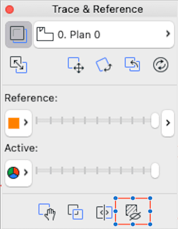
5. If You're Using Renovation Filters
Renovation projects with lots of statuses (“Existing”, “To Be Demolished”, “New”) render more slowly.
Try:
- Switch Trace/Reference to a simplified Renovation Filter
- Avoid showing demolished elements in the Trace
6. Avoid Using Layouts as Trace Sources
Layouts often contain:
- High‑resolution drawings
- PDF references
- Complex annotation
This is the #1 cause of lag.
Better: use the model view the layout drawing is based on.
7. Teamwork Users: Reserve Less / Receive More Often
Teamwork slows when:
- Many users have elements reserved
- Large delta updates are pending
Try:
- Release all
- Send & Receive
- Reload the Trace afterwards
8. Hardware Tips (Huge Impact)
Archicad is very dependent on:
- Fast single‑core CPU
(Archicad uses single‑threaded redraw for most 2D views)
- Plenty of RAM
16 GB = minimum
32–64 GB = recommended for large BIM
- GPU acceleration enabled
Check:
Options → Work Environment → Advanced Redraw Options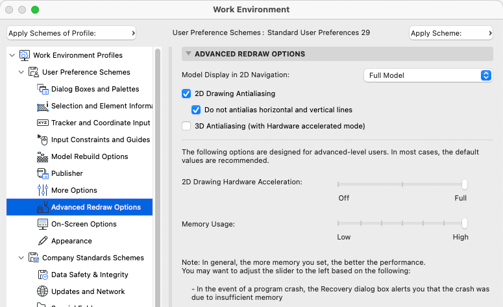
Quick Diagnostic Test
Try this:
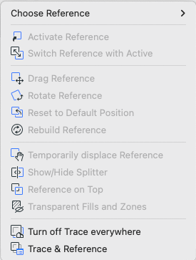
Go to View → Trace & Reference → Show/Hide Trace.
- If your model becomes fast immediately → the Trace source is too heavy.
- If still slow → issue is NOT Trace; it’s model size or 2D symbols.
There is also a new command in Archicad 29 that helps you turn off the Traces used in all different views in one klick, "Turn off Trace everywhere"