
A practical guide for Archicad users, BIM coordinators and project teams
How the Design Tool Client connects Archicad objects with structured BIM data - and how to use the workflow safely in production models.
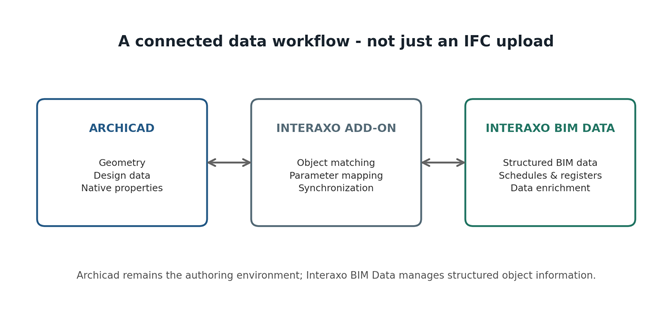
Figure 1. The add-on creates a live data connection between Archicad and Interaxo BIM Data.
Why use synchronization?Archicad is where architects and designers create and maintain the building model. Interaxo BIM Data adds another layer: a structured database for object information that can be managed, reviewed and enriched by more people than the Archicad authoring team.
The Interaxo BIM Data Design Tool Client for Archicad connects those two environments. Instead of repeatedly exporting spreadsheets or IFC files and manually merging information, selected object data can be synchronized directly between Archicad and Interaxo BIM Data.
The result is a controlled workflow in which geometry and design stay in Archicad, while project information can be distributed, enriched and returned to the model in a predictable way.
|
In one sentence: the add-on links Archicad elements to records in Interaxo BIM Data and synchronizes selected properties in the direction defined by the project setup. |
Install the Interaxo BIM Data Design Tool Client for the Archicad version used by the project. Once installed, the Interaxo commands become available inside Archicad.
2. Connect the production modelFrom Archicad, sign in to Interaxo BIM Data and associate the PLN or Teamwork project with the correct Interaxo project/model endpoint. The connection should be made in the real production model, not in a disposable copy.
3. Let the add-on identify the objectsThe integration stores a BIMEYE ID with the Archicad element. This identifier maintains the relationship between the object in Archicad and its record in Interaxo BIM Data.
4. Configure the parameter mappingDecide which Archicad properties correspond to which Interaxo parameters - and, critically, which direction each parameter is allowed to synchronize.
5. Run the synchronizationUse Interaxo > Sync > Sync Model Metadata. With no Archicad elements selected, the relevant model content is synchronized. With elements selected, the synchronization can be limited to those objects.
6. Review and continue workingAfter synchronization, review the result and continue the normal Archicad workflow. In Teamwork projects, publish the changes with Send & Receive so the rest of the team receives the synchronized information.
The most important concept: synchronization directionNot every parameter should move both ways. The project decides which system is the source for each piece of information. This avoids accidental overwriting and makes responsibility clear.
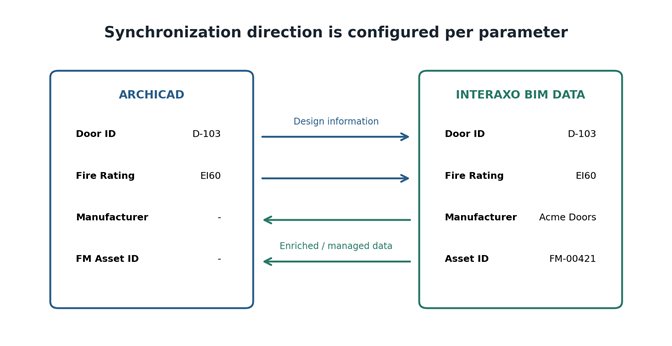
Figure 2. Example of different parameter directions in the same workflow.
A typical setup could be:
- Door ID and Fire Rating: maintained by the designer in Archicad and synchronized to Interaxo BIM Data.
- Manufacturer and FM Asset ID: maintained or enriched in Interaxo BIM Data and synchronized back to Archicad.
- Interaxo Support - Design Tool Clients: https://support.interaxo.com/hc/sv/articles/6652526768413-Om-Design-Tool-Clients
- Interaxo Support - Connect model to Interaxo BIM Data: https://support.interaxo.com/hc/sv/articles/6661103211549-Koppla-modell-till-Interaxo-BIM-Data
- Interaxo Support - Synchronize model: https://support.interaxo.com/hc/sv/articles/11293123776797-Synkronisera-modell
- Interaxo Support - Synchronization workflow: https://support.interaxo.com/hc/sv/articles/6661208624029-Synkroniseringsarbetsfl%C3%B6de
- Interaxo Support - Parameters: https://support.interaxo.com/hc/en-us/articles/6656729905565-Parameters-Create
This means Interaxo BIM Data can support people who do not work in Archicad while still keeping the production model up to date with approved information.
How are Archicad objects matched?For the native Archicad integration, the connection is based on a BIMEYE ID associated with each element. This is different from an IFC-only workflow, where the IFC GUID is normally the main identifier.
|
Workflow |
Primary object identity |
Typical use |
|
Native Archicad add-on |
BIMEYE ID linked to the Archicad element |
Direct metadata synchronization with the production model |
|
IFC / SimpleBIM workflow |
IFC GUID |
Exchange and management based on exported IFC data |
In a Teamwork project, synchronization should be treated like any other operation that can modify shared model information. A simple sequence reduces conflicts and makes it clear who owns the synchronized changes.
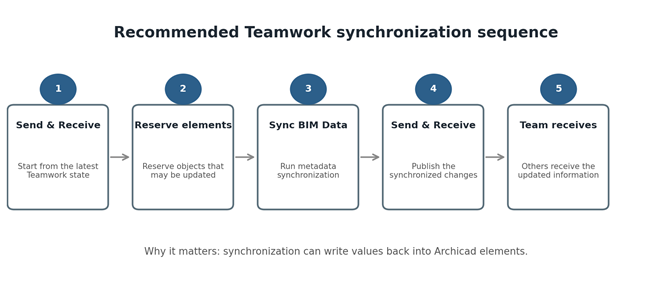
Figure 3. A practical Teamwork sequence for a synchronization session.
Views, geometry and zonesThe active Archicad view can influence the synchronization. Relevant layers should be visible, especially when Zones are used to establish room relationships. If geometry upload is enabled, the active 3D view can also be sent so that geometry is available together with the BIM data.
A useful project practice is to create a dedicated Archicad view for Interaxo synchronization. That view can control the layer combination, 3D filtering and any objects that should or should not participate.
Important Archicad considerationsHotlinks and modules: Objects inside hotlinked modules are not handled in the same way as native elements in the synchronized production model. Separate building files may need their own connection and synchronization strategy.
Expression-based properties: Calculated Archicad Properties may require an intermediate mapping approach if the value needs to be transferred. Project teams should test these before committing to a large-scale mapping.
Archicad 29 and IFC properties: For write-back workflows, prefer native Archicad Properties where possible. IFC properties can have write restrictions depending on the Archicad/add-on combination.
Selective synchronization: Individual elements can be excluded through the BIMEYE Sync flag when objects should remain outside the BIM Data workflow.
A recommended project setupBefore the first production synchronization, agree on four things:
- Which Archicad element types are included.
- Which properties are synchronized.
- Which system is the authoritative source for each parameter.
- Who is responsible for running and checking synchronization.
For larger projects, document the mapping in a simple matrix. This becomes the project team's data contract and prevents two systems from competing for ownership of the same value.
What this means in practiceInteraxo BIM Data should not be viewed as another copy of the Archicad model. It is better understood as a connected information environment alongside Archicad. Archicad remains the authoring tool for geometry and design, while Interaxo BIM Data provides a controlled place to manage structured object information across a broader project team.
Used with a clear parameter strategy and a disciplined Teamwork process, the connection can reduce manual data handling, improve consistency and make BIM information available to stakeholders who never need to open Archicad.
Further reading