![nordicbim_logo.png]](https://www.nordicbim.com/hs-fs/hubfs/Imported%20images/nordicbim_logo.png?height=40&name=nordicbim_logo.png)
Why Use BIMx?
- Better understanding through visuals
- Faster decisions and approvals
- Fewer misunderstandings than traditional PDFs
- More engaged stakeholders
BIMx turns BIM models into a shared language—helping everyone understand the building, make better decisions, and collaborate more effectively.
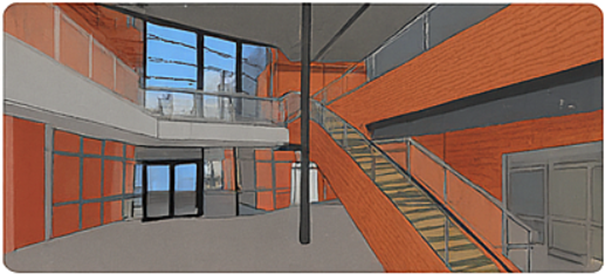
Interactive 3D Navigation
Users can walk through the building naturally—similar to a video game experience. Interiors, exteriors, and details are easy to explore, making design intent clear at a glance.
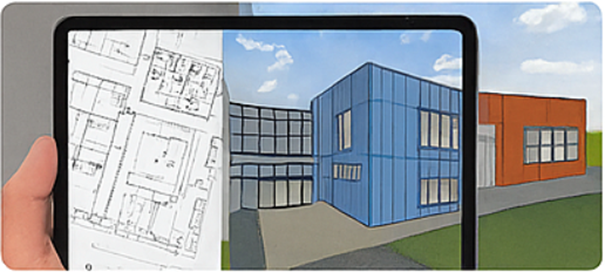
The Hyper‑Model
BIMx links the 3D model directly to 2D plans, sections, and details. Tap a wall, door, or space to instantly open the relevant drawing—and jump back to 3D just as easily. This creates a seamless connection between model and documentation.
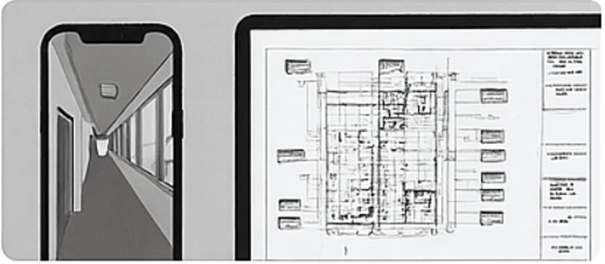
Mobile Access Anywhere
BIMx runs on computers, tablets, and smartphones. Teams can bring the full project on site, into meetings, or share it with clients—always working from the same, up‑to‑date information.
Step‑by‑Step: Exporting a BIMx Model from Archicad
Quick Checklist Before You Start
Make sure that:
- Your 3D model is up to date (rebuild if needed)
- All layouts, plans, sections, and 3D views you want to include are ready
- The publisher set is organized (recommended)
STEP 1 – Prepare the 3D View
- Go to a 3D view that represents how you want users to experience the building.
- Check:
- Correct Layer Combination
- Correct Model View Options
- Optional: Turn on Shadows, Textures, or Graphic Overrides
- Save the view:
- Navigator → View Map
- Right‑click → Save Current View
This view will be the default starting point in BIMx.
STEP 2 – Prepare Layouts and Drawings
If you want drawings included (Hyper‑Model):
- Open the Layout Book
- Select drawings of interest for viewer:
- Floor plans
- Sections / Elevations
- Details
- Check that drawings are:
- Correct scale
- Updated
- Clearly named
These layouts will be accessible inside BIMx via the Hyper‑Model.
STEP 3 – Create or Check a BIMx Publisher Set
- Open Navigator → Publisher Sets
- Look for:
- BIMx Hyper‑model (default)
- If missing:
- Right‑click Publisher Sets
- Choose New Publisher Set
- Set Format: BIMx Hyper‑model
STEP 4 – Add Content to the BIMx Publisher Set
Inside the BIMx Publisher Set:
- Drag and drop:
- The saved 3D View
- Desired Layouts (from Layout Book)
- Structure does not affect BIMx navigation, but clear naming helps users.
This defines exactly what users will see in BIMx.
STEP 5 – Set BIMx Export Options
- Right‑click the BIMx Publisher Set
- Choose Publishing Properties
- Review key options:
- Include Layouts
- Include 3D Model
- Hyper‑Model enabled
- Optional:
- Background color
- Camera speed
- Selection highlighting
Defaults usually work well—only adjust if you know why.
STEP 6 – Publish the BIMx Model
- Right‑click the BIMx Publisher Set
- Select Publish
- Choose destination:
- Graphisoft’s BIMx Model Transfer site (free of charge for AC users) or
- Local folder or
- BIMcloud
Archicad will generate a .bimx file.
STEP 7 – Test the BIMx File
Before sending it out:
- Open the BIMx file in:
- BIMx Desktop Viewer or
- BIMx Mobile App
- Check:
- 3D navigation works
- Layouts open correctly
- Hyper‑Model links function
- Performance is acceptable
Never send a BIMx file untested.
STEP 8 – Share with Others
You can share BIMx (link) via:
- Email (file attachment)
- Shared drive
- BIMcloud
- USB / tablet for site use
Recipients only need:
- Free BIMx app (no Archicad license)
