
Library Manager

In Library Manager, you can view all libraries and objects available in your project. Here, you can see the library name, location (file path), and size.
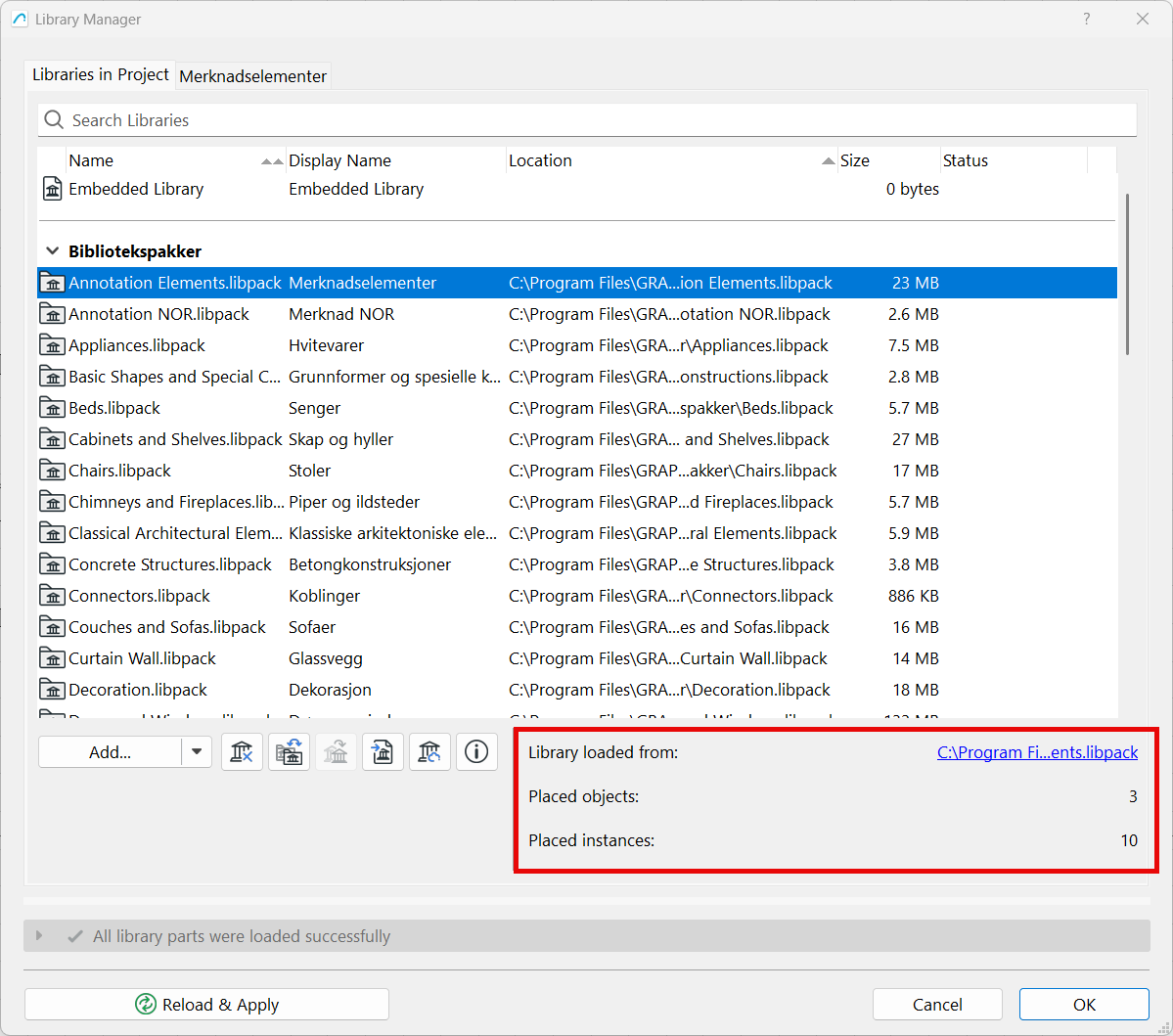
By selecting a library, you can view information about where the library is loaded from (file path), how many different objects from that library have been placed in the project, and the total number of placed objects.
Warnings
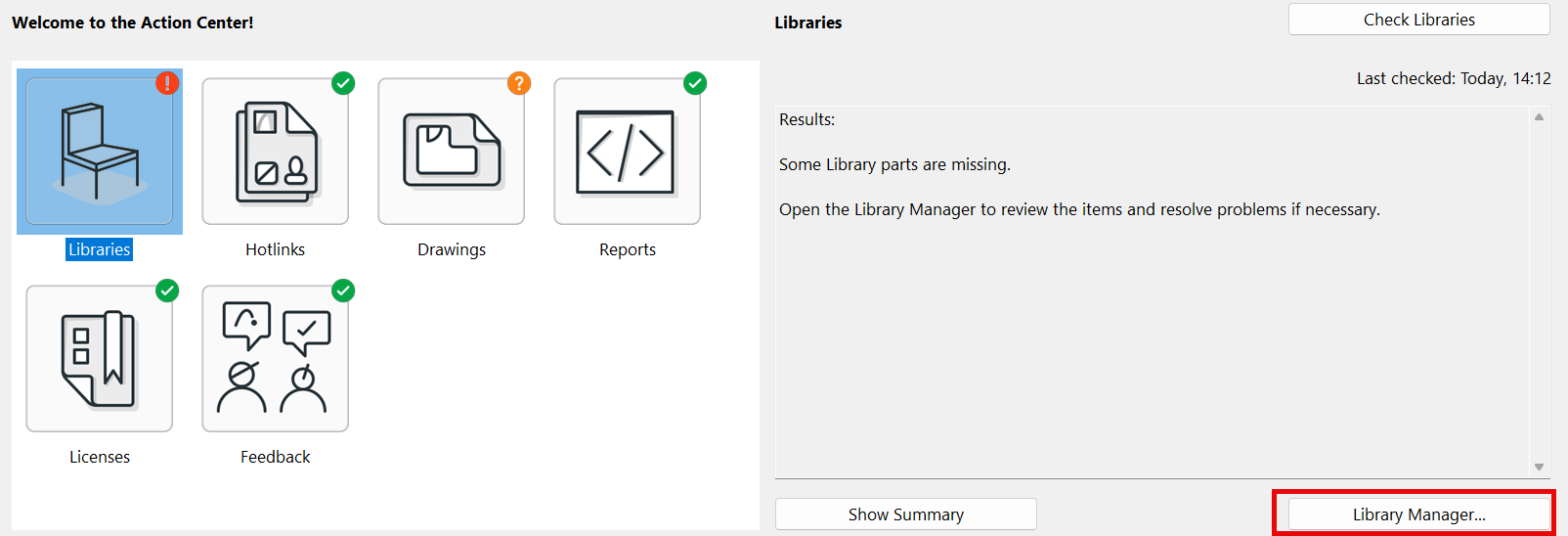
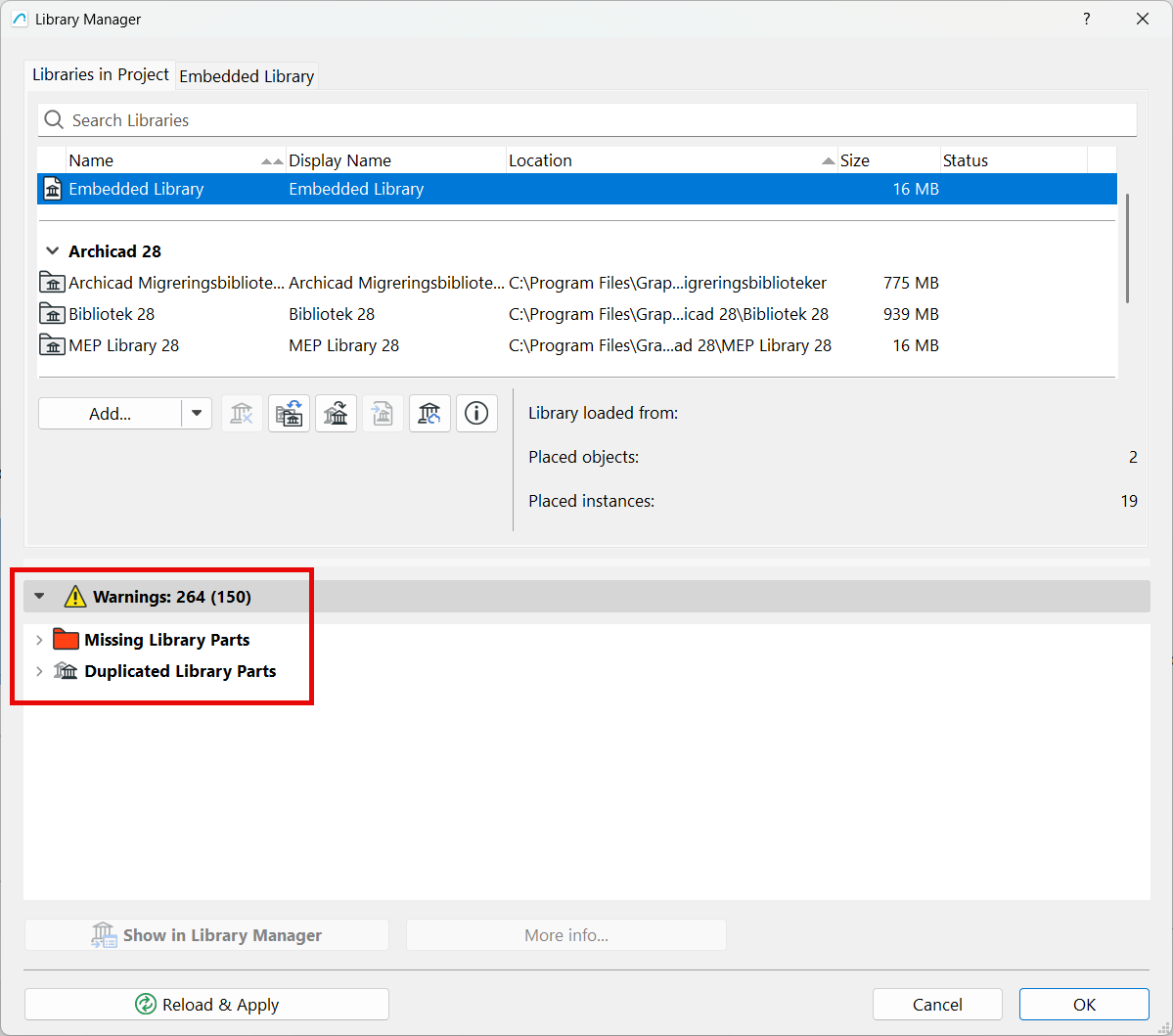
Under Warnings, you will find information about error messages, duplicates, and missing objects or libraries. If there are issues in Library Manager, the Action Center will also display a notification, allowing you to open Library Manager directly to troubleshoot, relink, or remove duplicates.
-
Warnings: 264 (150)
-
There are 264 warnings, of which 150 relate to objects that have been placed in the model.
-
You can select an object and choose More Info... to view detailed information about each individual object.
-
-
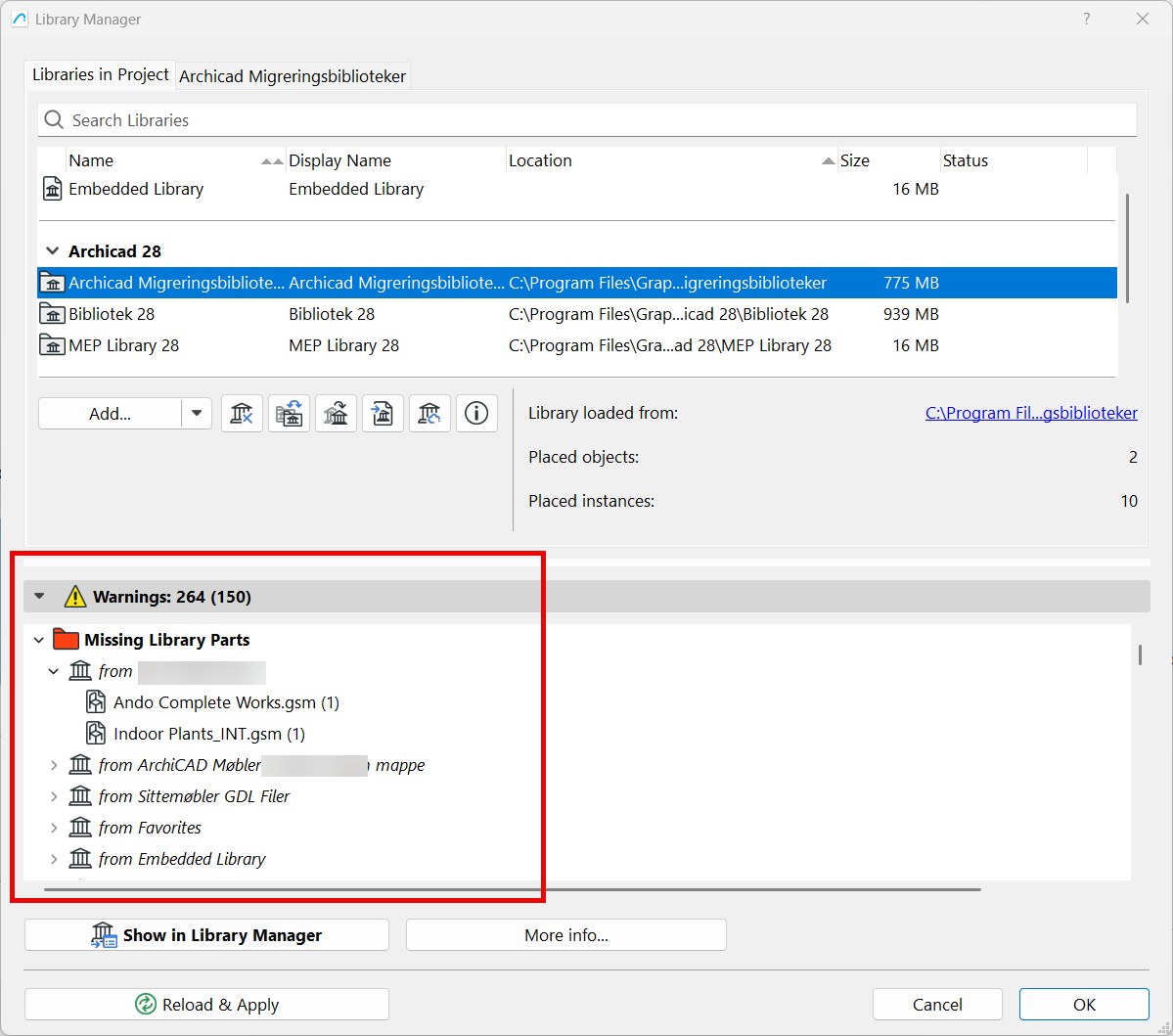
Missing Library Parts
-
Here, you can see which library the missing elements originate from. The number in parentheses (1) indicates how many instances of the object have been placed in the model.
-
Missing objects are displayed as black dots in the project. You can select these in the floor plan and replace them with objects that are already available in the project.
If libraries or objects are missing, the library must be re-added or replaced. This also applies if the libraries have been moved to a different location.
-
Duplicated Library Parts
-
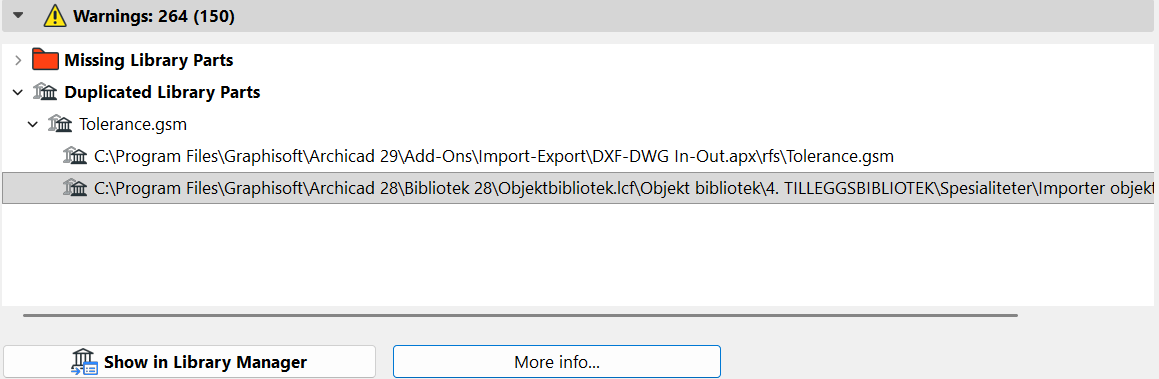
Here, you can see whether a library or object has been loaded two or more times. This can happen, for example, if you are working in Version 27 and have also loaded the Version 26 library, since many elements are included across multiple versions.
-
When you open an object, you can see where it is located. In the example above, the object belongs to the Version 28 Library and the Version 29 Add-Ons Library.
After relinking, replacing, or deleting duplicates, select Reload & Apply.
If you opened Library Manager directly from the Action Center, you can now choose Check Libraries. If everything is configured correctly, you will see a green check mark and no error messages.
If you have libraries that are no longer needed and will not be used in future projects, they can be removed. This can help reduce search and loading times in the software.
embedded library
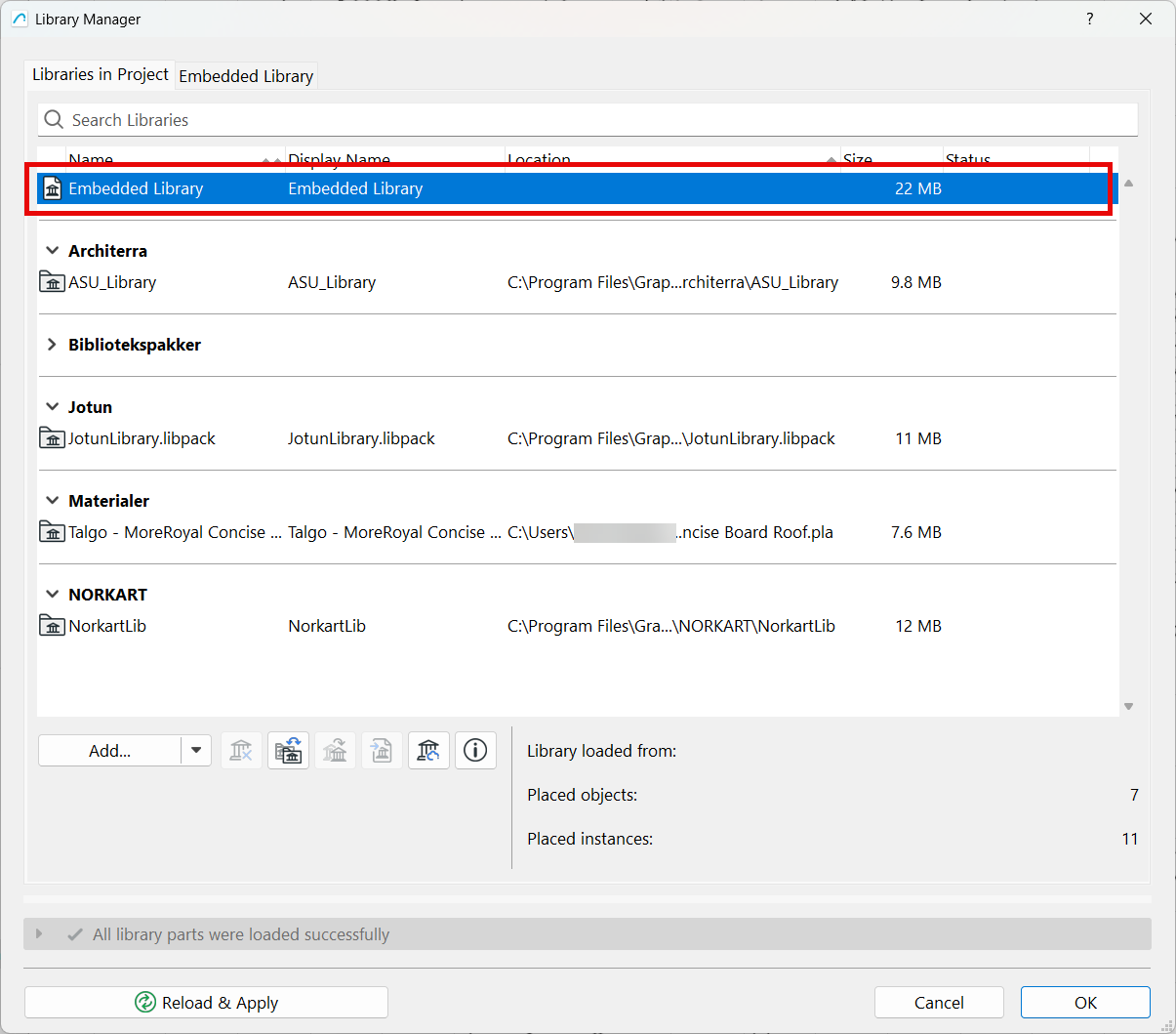
The Embedded Library is intended for storing project-specific objects that are not expected to be used in other projects. The objects are stored directly within the project file, ensuring that they will always be available if a colleague opens the project on another computer.
-
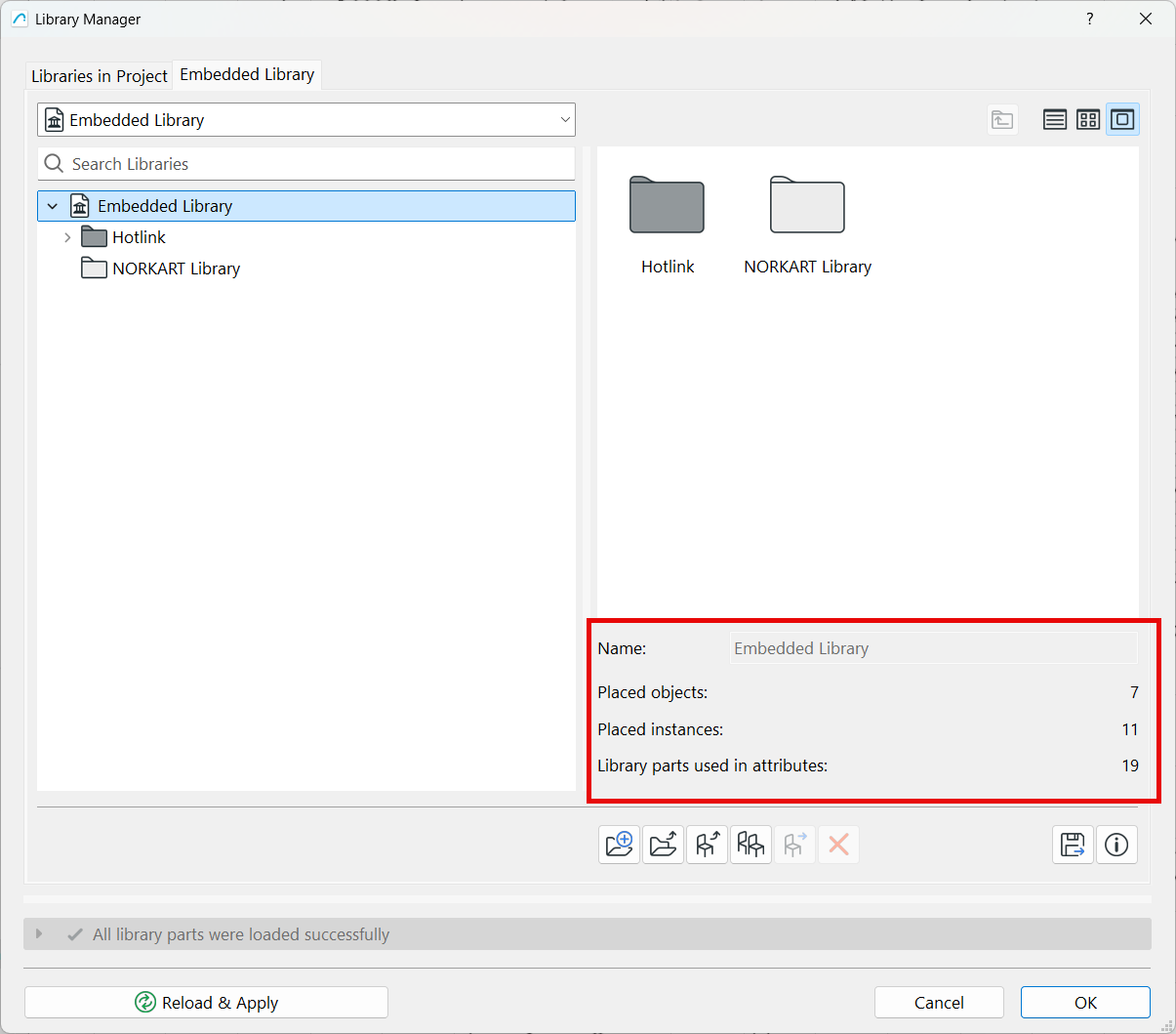
Recommended for small projects only. If the Embedded Library becomes too large (typically exceeding 100–200 MB), it may lead to performance issues such as slowdowns, crashes, or similar problems.
-
Organize the Embedded Library using folders to maintain a clear and structured overview.
-
Delete objects that are no longer in use or are not expected to be used in the future. If all usage counts are zero, the elements can safely be removed.
solo files
If you are working in a standalone project file (solo file), the required libraries are stored locally on your computer or server.
Archicad libraries are installed together with the software and can be found at:
- Windows: C:/user/programfiles/graphisoft/archicad xx
- MacOS: Applications/Graphisoft/Archicad xx
- If you install Monolith Migration Libraries, they will also be placed in the same location as listed above
teamwork
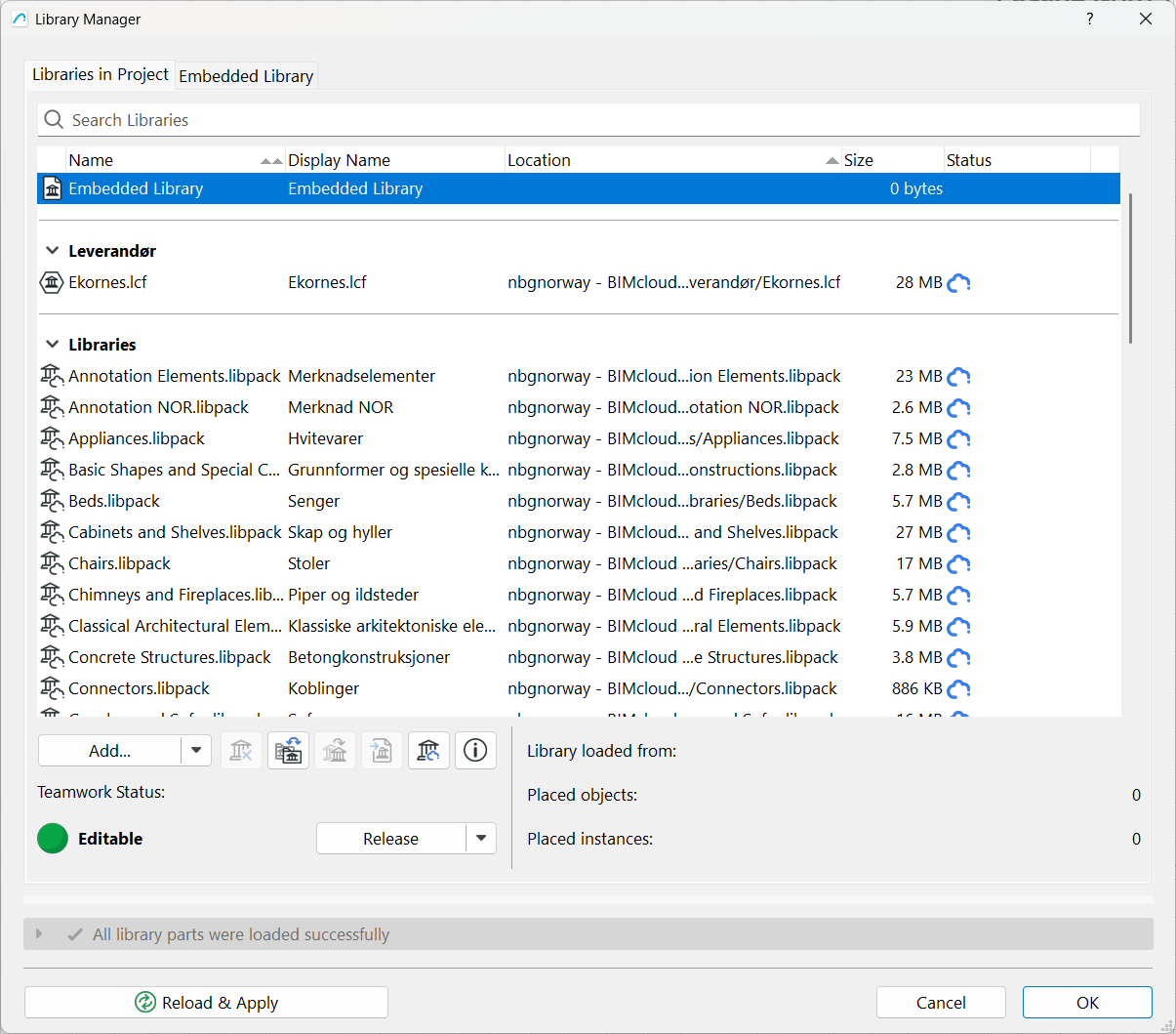
When working in Teamwork, all libraries that will be used must first be uploaded to BIMcloud and then linked to the project from there.
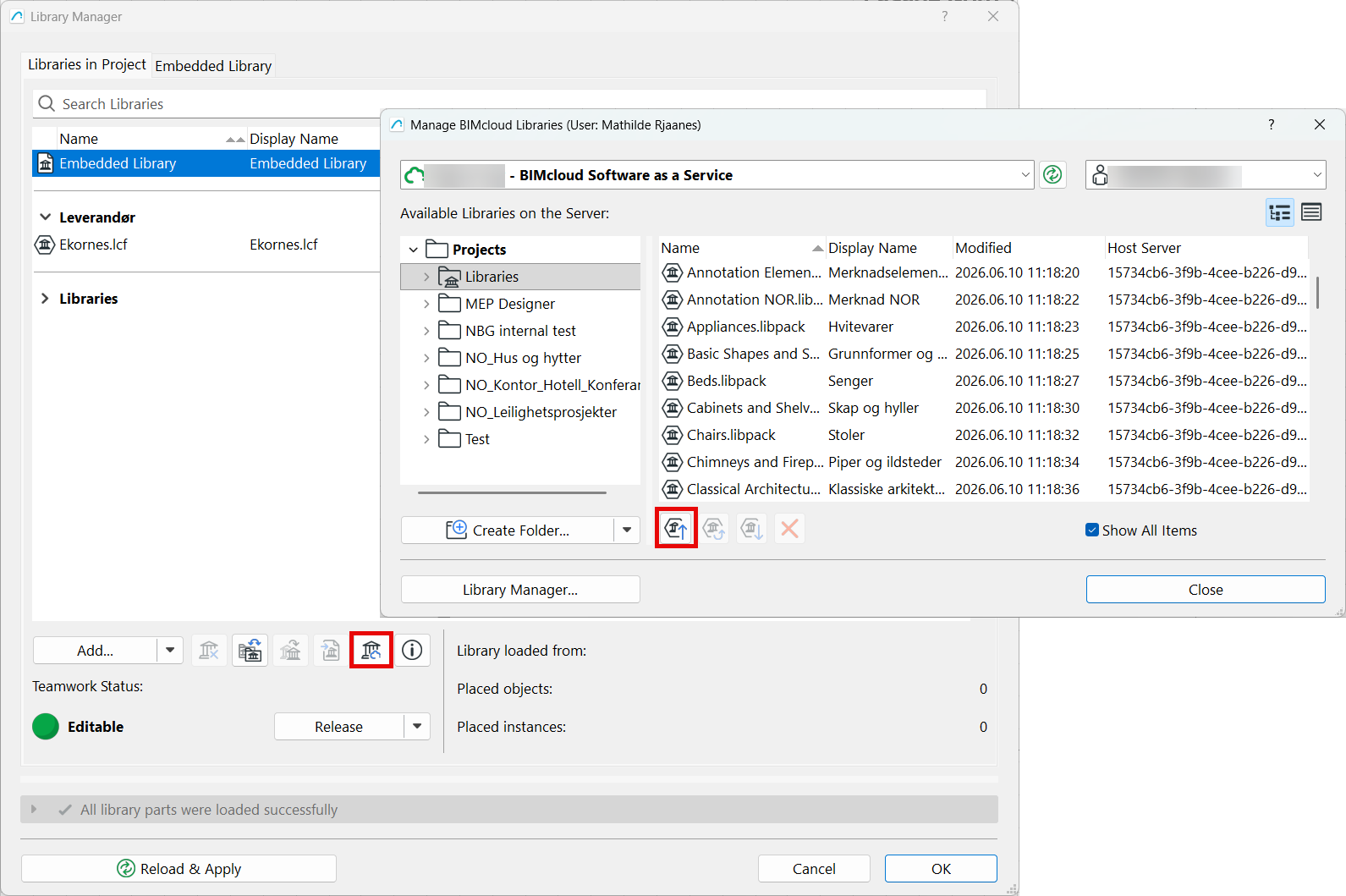
- Libraries must be uploaded to BIMcloud through Library Manager, not directly into BIMcloud. Otherwise, they will not be recognized as library files.
- Reserve the required permissions first, then select the Manage BIMcloud Libraries icon and choose Upload Library
- The file path will point to BIMcloud, and the library will be displayed with a BIMcloud icon (cloud symbol) in Library Manager.
If you are using Archicad 28 or newer with Library Packs, these must also be updated in BIMcloud. See the relevant guide for instructions. Remember to delete local data afterward.
libraries from hotlinks
When hotlinking files, such as IFC files, you can choose whether to store the library in the Embedded Library or in an External Location.
-
Our recommendation is to use External Location.
-
The library files are then stored locally on your computer and must be added to Library Manager afterward.
-
If you are working in a Teamwork project, the library must first be uploaded to BIMcloud and then linked through Library Manager.
-
updating libraries (version 28 and later)
Starting with Archicad 28, the standard libraries receive updates in the same way as the software itself.
-
If libraries are not updated, you may encounter missing objects that appear as black dots in the project.
-
If you are working in Teamwork, the libraries must also be updated in BIMcloud. Refer to the relevant guide for instructions.
Another change introduced in Version 28 is the new library structure. Read more about Library Packs in the related article. It is not recommended to combine the old and new library structures within the same project.