![nordicbim_logo.png]](https://www.nordicbim.com/hs-fs/hubfs/Imported%20images/nordicbim_logo.png?height=40&name=nordicbim_logo.png)
Bring order and clarity to complex projects
The tool lets you assign ID numbers based on element attributes (e.g., height, width, story, type). This makes large models easier to understand, especially during takeoffs, scheduling, and coordination.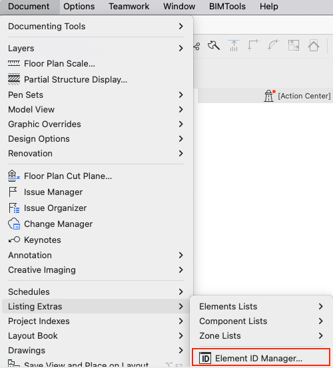
You can sort elements by criteria you choose—walls by thickness, windows by height, etc.—which brings consistency and predictable structure to your project.
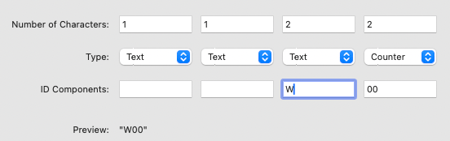
Element IDs can be built from up to four components, combining:
- Text
- Counters (letters and numbers)
- Storynumbers
It gives you complete control over renumbering
Renumbering is easy:
- Select elements in the desired order (e.g., left to right)
- Apply new IDs in one batch
You can enforce;
- Unique IDs for each element, or
- Same ID for grouped elements based on criteria
In short
Archicad’s Element ID Manager is great because it transforms an otherwise tedious task—managing element IDs—into a structured, automated, and customizable workflow that improves clarity, accuracy, and efficiency across the entire BIM process.
This is how you take control over the ID's with Element ID Manager
- Choose the Elements You Want to Manage
- If elements are selected on the Floor Plan, the Manager will only apply to those elements. If nothing is selected, the tool works on all placed and visible elements (hidden-layer elements are ignored).
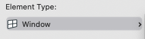
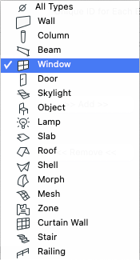
- Set up sorting criteria (Sort Elements Tab)
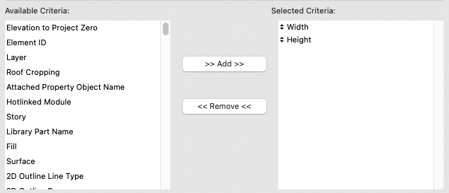
- Define your ID format (ID Format Tab)
- Assign or Modify IDs

- Save your configuration for reuse
