![nordicbim_logo.png]](https://www.nordicbim.com/hs-fs/hubfs/Imported%20images/nordicbim_logo.png?height=40&name=nordicbim_logo.png)
If your organization has multiple Graphisoft ID Companies, you can merge them to simplify user and license management. This guide explains what is required, how the merge process works, and what to expect during and after the merge.
Before you start
To merge two Graphisoft ID Companies, you need:
-
Administrator access to both companies
-
The Unique ID of the company you want to merge
-
Companies that meet the merge requirements
⚠️ Only Company Administrators can initiate or accept a merge.
Important notes about company merges
-
Only two companies can be merged at a time
-
After a merge is completed, additional companies can be merged one by one
-
During the process, the system defines:
-
a primary company
-
a secondary company
-
Licenses and members from both companies are kept, but company roles from the secondary company are removed and must be reassigned after the merge.
Step 1: Find the Company Unique ID
-
Go to the Company Management Portal
-
Sign in using the administrator account of the secondary company
-
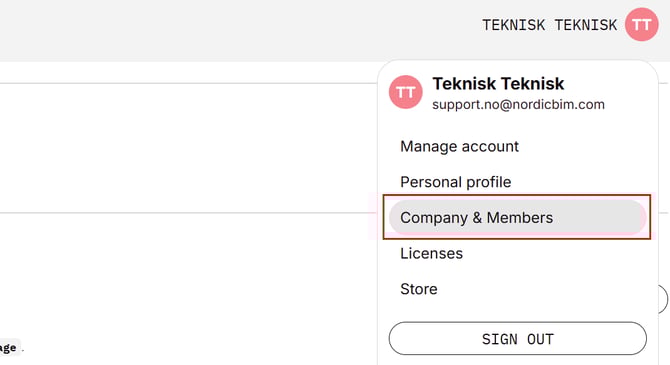
Open Company & Members
-
On the Company Profile page, locate Company Unique ID
-
Copy and store the ID to your clipboard
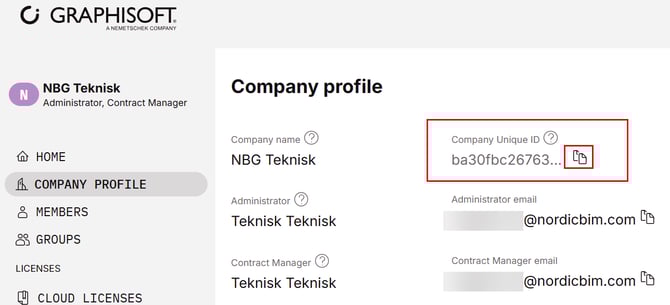
You will need this ID in the next step.
Step 2: Start the merge process
-
Sign out of the Company Management portal
-
Log in again as the administrator of the company that will remain as the primary company
-
Go to Company & Members
-
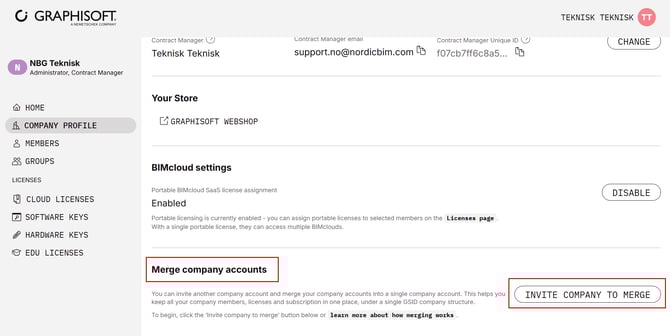
On the Company Profile page, find Merge company accounts
-
Click Invite Company to Merge
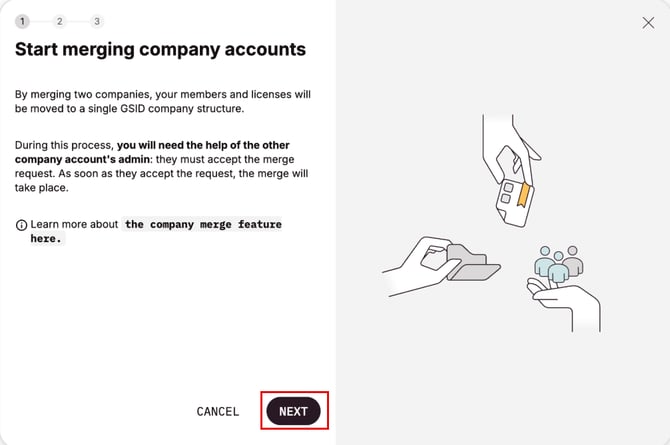
A merge wizard will open with general information about the process.
Step 3: Enter the Company Unique ID
-
Read the information and click Next
-
Paste the previously saved Company Unique ID
-
Click Check
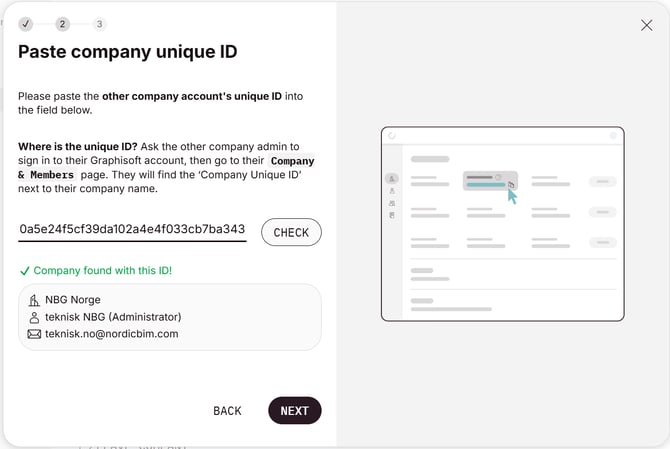
- Click Next
If both companies meet the requirements, the system confirms that the company was found.
Step 4: Review and send the merge request
-
Review the summary of what will happen during the merge
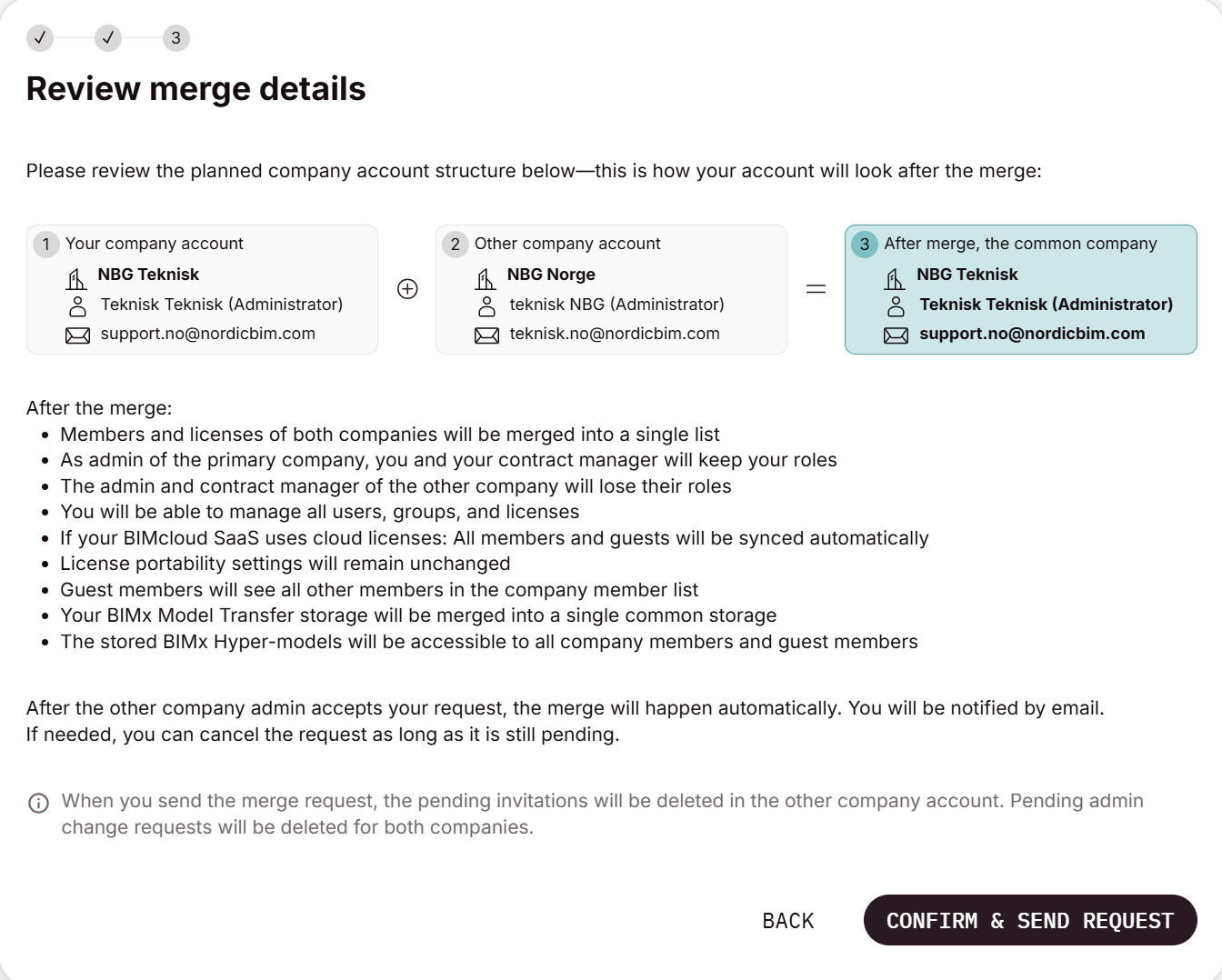
-
Click Confirm & Send Request
The administrator of the other company will receive a merge request.
Step 5: Accept the merge request
-
Log in as administrator of the secondary company
-
The merge request appears in the Company Management Portal
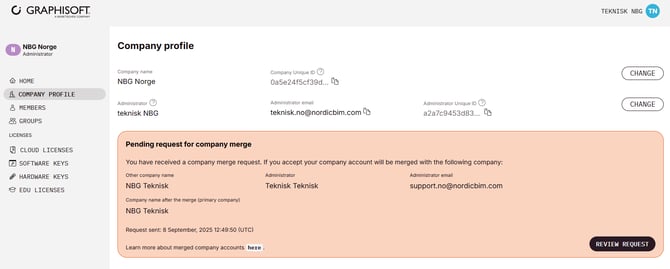
-
After reviewing the details, the administrator accepts the merge
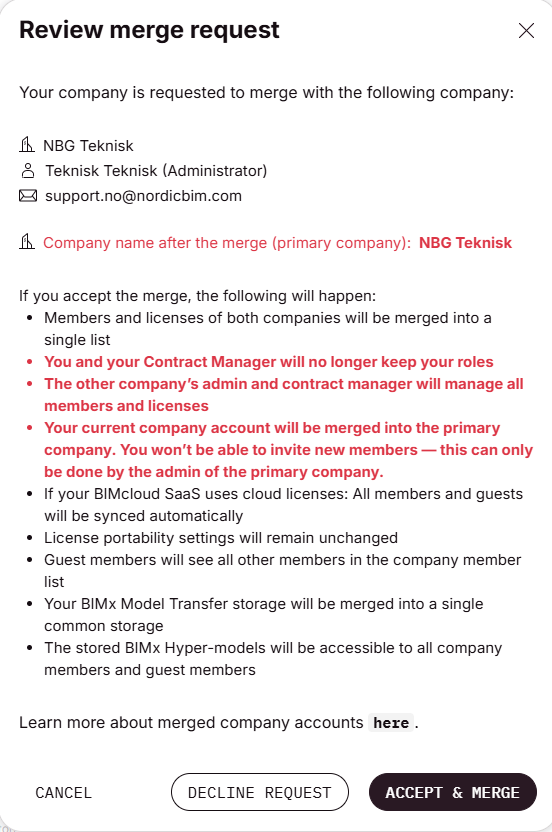
Once accepted, the merge is completed automatically.
What happens after the merge?
-
All members and licenses are combined into the primary company
-
The primary company name is used for billing and internal systems
-
Service level (SSA / Forward / Subscription / VIP) of the primary company remains
-
Administrator and Contract Manager roles from the primary company stay intact
-
Roles from the secondary company can be reassigned as needed
When is a merge not possible?
Merging Graphisoft ID Companies is not supported if:
-
Both companies have (or previously had) cloud licenses
-
Both companies have active BIMcloud SaaS
-
Perpetual licenses were never linked to a Graphisoft ID Company
In these cases, additional steps may be required before merging is possible.