![nordicbim_logo.png]](https://www.nordicbim.com/hs-fs/hubfs/Imported%20images/nordicbim_logo.png?height=40&name=nordicbim_logo.png)
For some companies that are using several custom libraries, creating an LCF file that contains all the libraries will make the day-to-day handling of the libraries a bit easier.
LCF files are great when you want the objects to remain static, as the objects within cannot be overwritten/edited. Creating an LCF will also result in handling one file instead of several - this will make it easier to handle for both users and Archicad, resulting in a faster file.
Here's how to go about it.
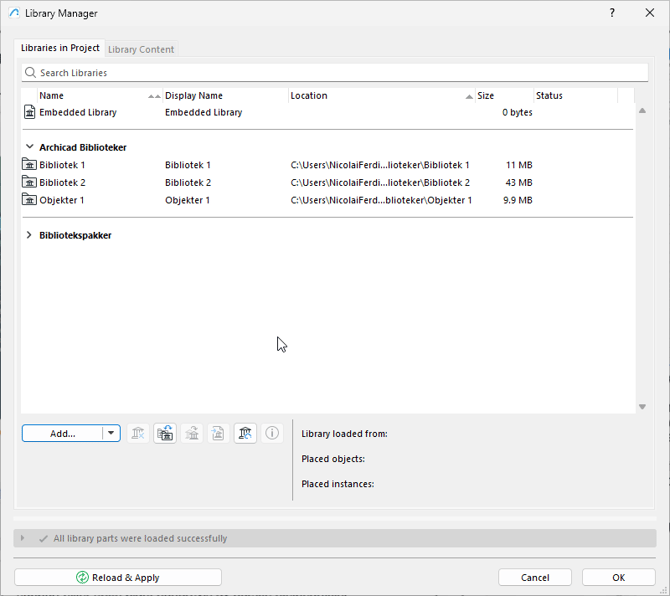
1. Make sure you have your libraries loaded and organized in folders as you want them to appear in the LCF file. In this example, I have loaded the folders "Bibliotek 1", "Bibliotek 2" and "Objekter 1".
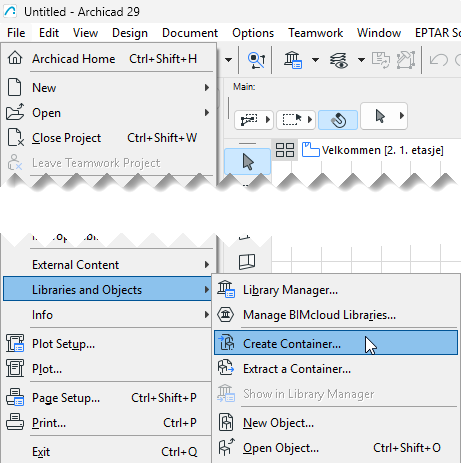
2. Press File -> Libraries and Objects -> Create Container
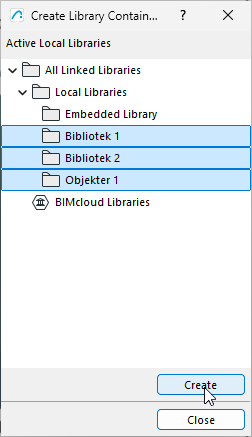
3. In the resulting dialogue box, select the folders you want to include in your LCF file. The standard press Shift to select multiple files works here. Press Create.
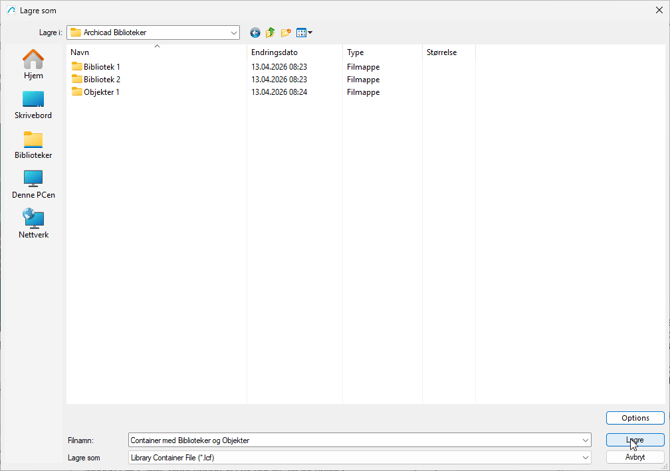
4. Save your LCF file with a name that makes sense in a location that works for you.
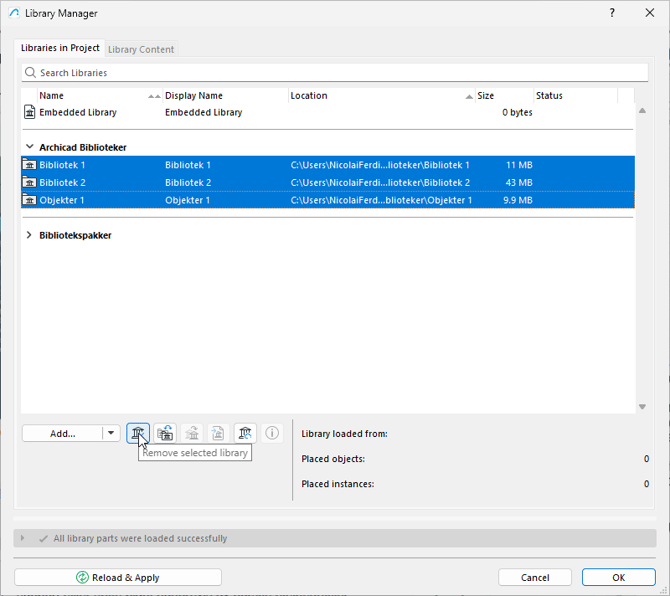
5. Open Library Manager and remove the previously loaded folders by selecting them and pressing the corresponding button.
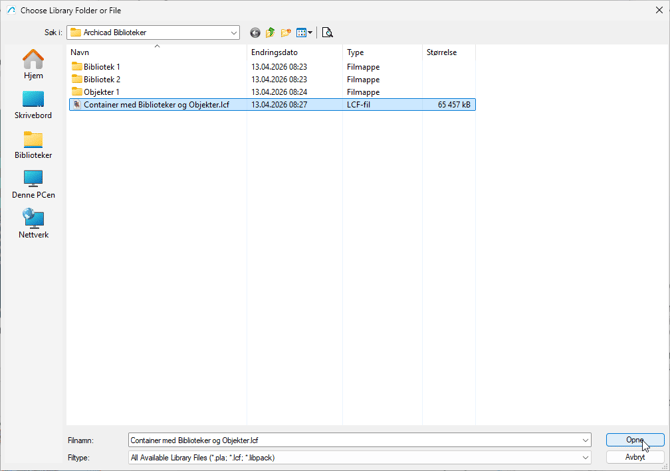
6. Press Add and browse to the folder where you saved your LCF file. Select it and press Open.
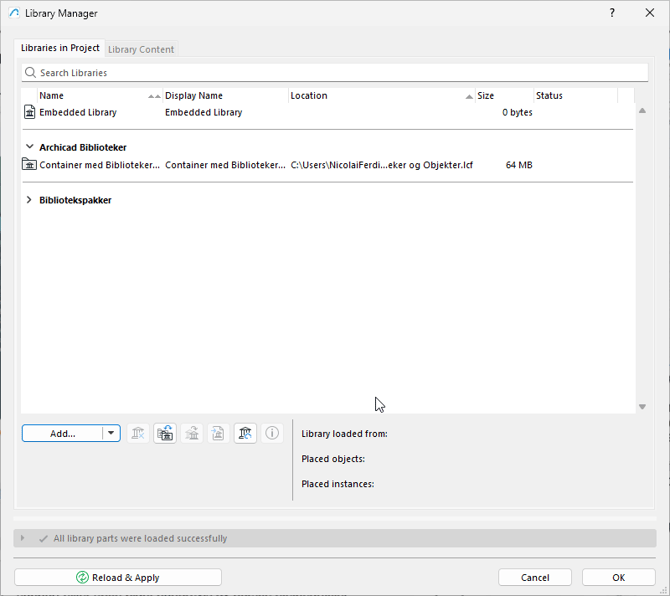
7. You have now loaded your LCF file!
Note: A LCF file cannot be directly edited. If you wish to edit the contents, you need to extract the objects, rearrange them in the folder structure you would like, and create a new LCF file.
Other articles that may be of interest:
Oppdatere BIMcloud Biblioteker
