![nordicbim_logo.png]](https://www.nordicbim.com/hs-fs/hubfs/Imported%20images/nordicbim_logo.png?height=40&name=nordicbim_logo.png)
All Collaborate plans (with cloud licenses) purchased in September 2023 or later will receive this new feature. The floating cloud license is not a separate product, but a new feature that expands the potential of cloud licenses.
An Archicad Collaborate cloud license can act as a named license or as a floating license, depending on how the license is assigned on the license management page.
- A cloud license is named if it is assigned directly to a Graphisoft ID account.
- A cloud license becomes a floating license if it's assigned to a group.
The administrator or contract manager can create, edit, and invite Graphisoft ID accounts to groups. Members can then access the floating licenses in their group.
This new management feature enables two-way license deployment. Named cloud licenses become liquid as soon as they are assigned to a group. When removed from a group, the cloud license can revert to being a named license.
After you purchase your cloud license, you can review and manage it on https://licensemanagement.graphisoft.com/.
After logging in with your Graphisoft ID, you will see information about the licenses available to you as a member. The company administrator can manage the company profile and all licenses. Please visit this article to become familiar with the basics of cloud license management: Getting Started with Graphisoft Cloud Licensing.
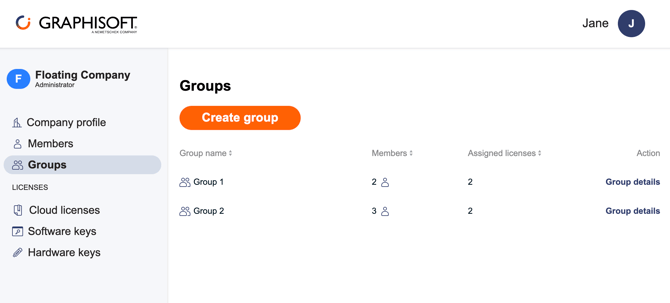
The Business Profile, members, and groups tabs are part of the https://companymanagement.graphisoft.com page.
On these tabs, you'll see some basic company information, as well as the company's members and groups:
On the Licenses page, select the "Cloud Licenses" option to review the cloud licenses available to you.
Here, you will see all the licenses assigned to you or the floating license you are using.
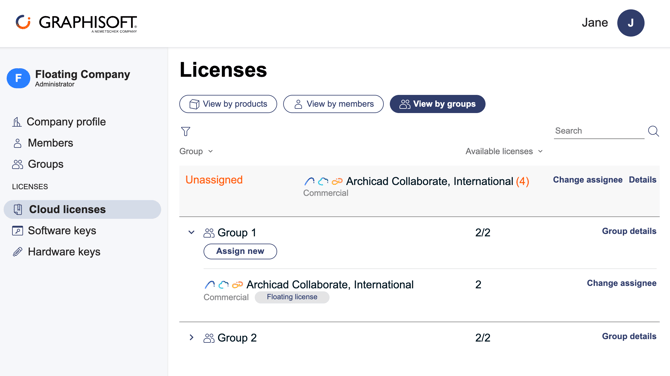
A Graphisoft ID account can be a member of multiple groups within the same company, but we recommend that each account is only added to a single group.
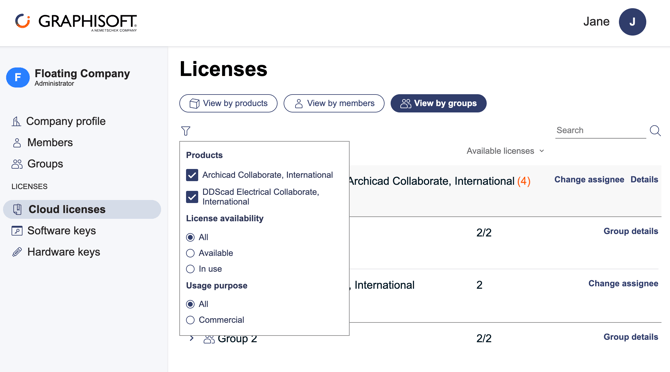
Click on "View per group" to find more information about a group, such as name and description, group members, and licenses assigned to that group. You can also apply filters based on product, license availability, and purpose of use:
Click here for a simplified version of this manual.