
Important: Read this entire guide before running the cleaner to avoid data loss.
- Do not install or run the Registry or Preferences Cleaner on a BIMcloud Basic or BIMcloud on-premise server machine. Running it on a server removes all Graphisoft product preferences and requires a complete reconfiguration of BIMcloud.
Issue description
Use the Registry Cleaner (Windows) or Preferences Cleaner (macOS) when Archicad shows persistent issues caused by damaged or conflicting preference or registry entries—such as unexpected crashes, missing interface elements, incorrect Work Environment settings, or problems that remain after reinstalling the software. These tools reset Archicad’s preference files, allowing you to restore stable operation.
Preparation steps
Running the Registry or Preferences Cleaner removes all custom Work Environment profiles and DXF/DWG translators from all installed Archicad versions. If you want to keep these settings, export or back them up before continuing.
The files can be found in the following locations:
Windows:
C:\Program Files\Graphisoft\Archicad XX \Defaults\Archicad\Work Environment

C:\Users\{username}\Graphisoft\
macOS:
~/Library/Application Support/Graphisoft/DXF-DWG Translators 29.0.0 USA

~/Library/Preferences/Graphisoft/ AC29.0.0 USA v1 /WorkEnvironment
Notes:
-
Folder names may differ depending on the installed Archicad version.
-
The Registry/Preferences Cleaner removes preference files for all installed Archicad versions.
-
If you are working on a Teamwork project, perform Send & Receive, save the project, and close it before running the cleaner.
-
Do not install or run the Registry Cleaner on a BIMcloud server machine. Doing so removes all Graphisoft product preferences and requires a full reconfiguration of BIMcloud.
-
After running the cleaner, you will need to sign in again with your Graphisoft ID.
Running the Registry or Preferences Cleaner
- Download the required file:
- Windows: Registry Cleaner
- macOS: Preferences Cleaner
- Save and close all instances of Archicad.
-
Run the Cleaner app.
Windows- Double-click on the Register Cleaner to launch it.
- Locate the 'GS Preference Cleaner.app' and Right-click > Open.
- If you get the following error message, don't click on anything yet.

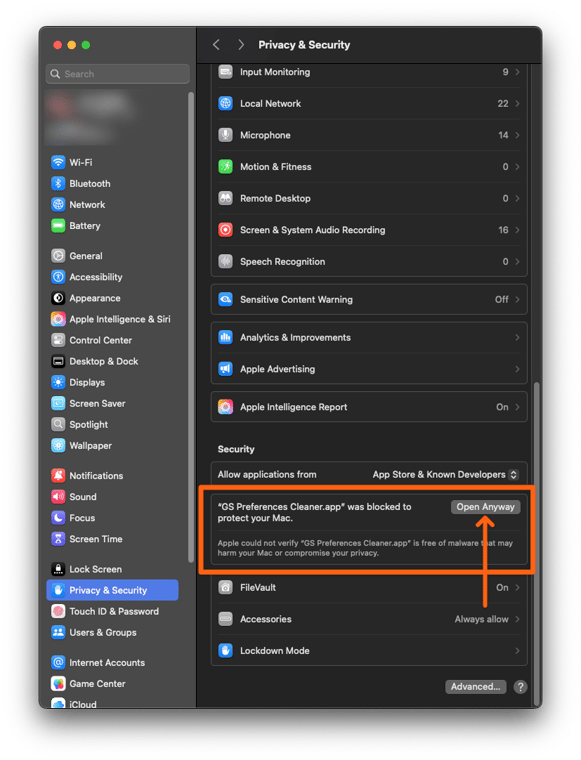
- Go to System Settings > Privacy & Security and scroll down to the 'Security' section at the bottom.
- You will see a message that states: "GS Preferences Cleaner.app" was blocked to protect your Mac.
- Click on the 'Open Anyway' button.
-
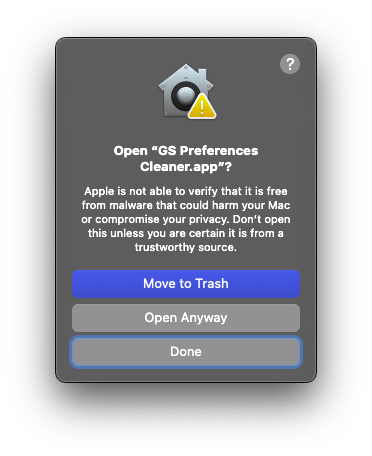
A new window will pop up, click 'Open Anyway'.
- The Graphisoft Preferences Cleaner window will appear. Click the Clean button.

- After the process completes, reopen Archicad and check whether the issue has been resolved.
- If the issue persists, run the cleaner again and this time remove all checkmarks.
