![nordicbim_logo.png]](https://www.nordicbim.com/hs-fs/hubfs/Imported%20images/nordicbim_logo.png?height=40&name=nordicbim_logo.png)
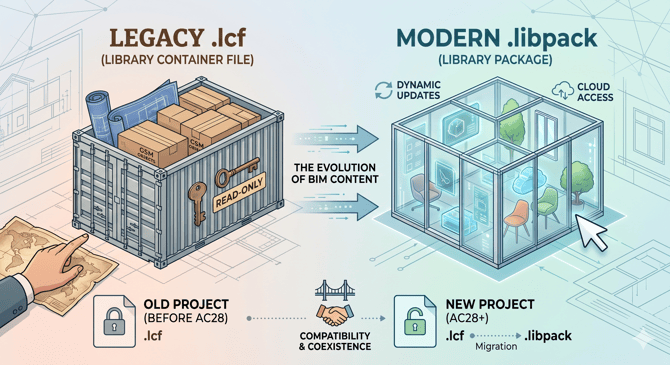
For years, Archicad users have relied on the Library Container File (.lcf) to manage their BIM objects. However, with the introduction of newer versions (starting with Archicad 28), Graphisoft has introduced the Library Package (.libpack) format. While both serve to bundle library parts, they represent two very different philosophies in data management.
The Traditional Approach: .lcf (Library Container File)
The .lcf format is essentially a "read-only" compressed folder. It was designed to consolidate hundreds of individual .gsm (GDL objects), images, and macros into a single file to speed up loading times and prevent missing textures.
-
Static Structure: Once a container is created, you cannot easily "peek" inside or edit a single object without extracting the entire file using the LP_XMLConverter or Library Manager.
-
Version Bound: Historically, these files were specific to a version (e.g., Archicad 26 Library.lcf), and often also to a country specific localized version.
-
Legacy Focus: It remains the standard for older projects and custom office libraries that haven't migrated to the new system.
The Modern Standard: .libpack (Library Package)
The .libpack format is the cornerstone of the new Global Library concept. It isn't just a container; it is a smarter, version-independent package designed for a more modular workflow.
-
Version-Agnostic: Unlike
.lcffiles, which often required manual migration,.libpackfiles are designed to be updated dynamically via the cloud or the Global Library system. -
Cloud-Ready: This format is optimized for the Graphisoft Library Manager, allowing users to download only what they need and receive seamless updates without replacing massive files.
-
Performance: It utilizes a more modern indexing system, making the search and placement of objects faster within the Archicad interface.
Key Differences at a Glance
| Feature | .lcf (Legacy) | .libpack (Modern) |
| Primary Use | Local/Archived Libraries | Global/Standard Libraries |
| Flexibility | Rigid; requires extraction to edit | Modular; supports partial updates |
| Distribution | Manual file sharing | Cloud-based & Automatic updates |
| Compatibility | Archicad 27 and older | Archicad 28 and newer |
Why the Change?
The shift to .libpack is part of Graphisoft’s strategy to move away from "monolithic" library files that become obsolete every year. By using library packages, Archicad can maintain a Global Library where an object created today can work across different versions of the software more fluidly, reducing the "migration headache" that has long been a part of the annual Archicad update cycle.
Project Compatibility & Coexistence
When migrating projects or managing office standards, it is important to know how these formats live together:
-
Side-by-Side Usage: You can load both formats in the same project. Archicad 28+ supports legacy
.lcffiles to ensure older projects still render correctly. This also includes local office library folders with .gsm object in them. -
The Migration Path: Graphisoft provides Migration Libraries (in
.lcfformat) to bridge the gap. These allow older objects to function even if the main library has switched to.libpack. -
No Backward Compatibility: While
.lcfworks in newer versions,.libpackfiles cannot be opened in older versions (AC27 and earlier). -
Conflict Management: If an object exists in both formats, Archicad will flag a "Duplicate Object." Generally, the newer Global Library (
.libpack) version is prioritized.
Summary
While .lcf remains a reliable way to bundle custom office assets, .libpack is the future of Archicad’s built-in content. For existing projects, there is no need to rush a conversion; simply load your legacy .lcf (or local office library folder) alongside the new Global Library packages and use the Library Loading Report to manage any missing or duplicate parts.