![nordicbim_logo.png]](https://www.nordicbim.com/hs-fs/hubfs/Imported%20images/nordicbim_logo.png?height=40&name=nordicbim_logo.png)
- Log in
- Use your existing administrator account to log in to the GSID site.
- Navigate to Company Information
- Go to the menu and select "Company information" to open the company details page.
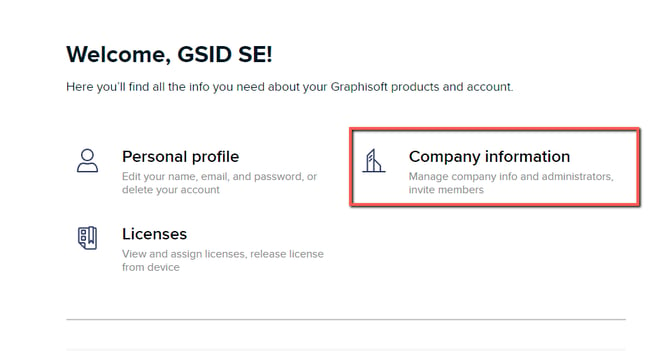
- Go to the menu and select "Company information" to open the company details page.
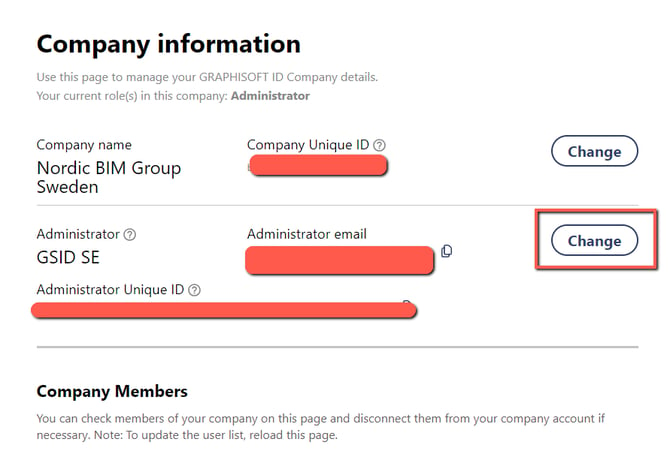
- Change administrator
- Click the "Change" button next to the admin information.
- Enter the details of the new administrator in the fields provided.
- New Admin Approval
- An email will automatically be sent to the new administrator.
- The new admin must open the email and accept their new role by following the instructions in the message.
- Once the new administrator has accepted the role, the change will take effect and the new administrator will now have administrator rights.
If you do not have access to the existing administrator account
, please contact support for assistance in changing the administrator. Support will be able to verify your identity and implement the change for you.
Hope this clarifies the process! Contact support if there are any doubts.