![nordicbim_logo.png]](https://www.nordicbim.com/hs-fs/hubfs/Imported%20images/nordicbim_logo.png?height=40&name=nordicbim_logo.png)
Cloud Licensing Introduction and Benefits
Hardware keys provide direct access to licenses when you plug in the USB key, but they must always be physically carried along. These keys can also restrict access to a computer's I/O resources. Software keys free up these resources and can be used at any time after downloading, but require more knowledge of license management. Both options risk damage, which can interfere with your work because licenses are required to use the software.
Cloud licensing is a convenient solution for IT and project managers who need to distribute licenses among team members and track usage. It also provides benefits to individuals who work from different locations. This form of license combines the advantages of both hardware and software keys: accessible without a physical key and easy to configure. Additionally, cloud licensing minimizes the risk of key corruption, ensuring that your work isn't interrupted.
Activation of license in Archicad
To activate your cloud license for Archicad, log in with your Graphisoft ID. Make sure you enter your login credentials correctly and have a stable internet connection

Enter your username and password and log in. Done!
NOTE: Once you have activated your cloud license, it can be used unlimitedly as long as you have an internet connection. If you need to use Archicad offline, no worries, the license includes 7 days of offline use. After 7 days, you may need to verify the validity of the license, which requires an internet connection again.
License Management
After you purchase your cloud license, you can manage it on https://graphisoftid.graphisoft.com. Log in with your Graphisoft ID, where you can manage your personal profile, company information, and available licenses.
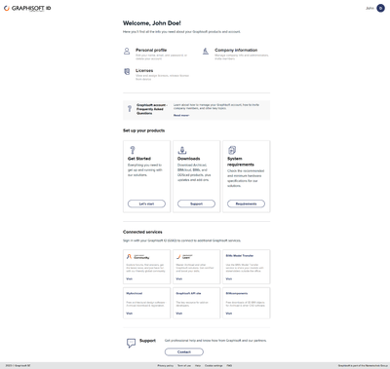
Assignment of license to Graphisoft ID
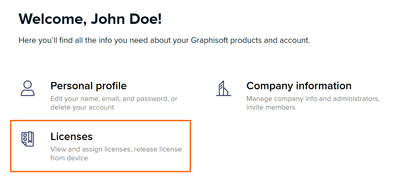
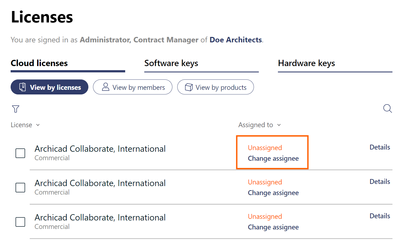
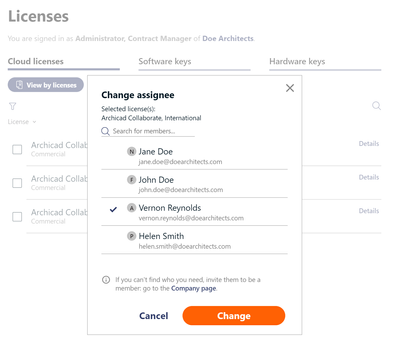
Before you can use your cloud license, you need to assign it to a Graphisoft ID account. This can be your own account or another account belonging to your company where you are an administrator or "Contact Manager". To assign a license to an account, follow these steps:
- Select a license.
- Click on "Change Assigne".
- Select a member from your company and tap "Change."
License transfer between computers
You may want to use Archicad on multiple devices. When you log in with your Graphisoft ID on the other device, Archicad will display a notification about the license in use.
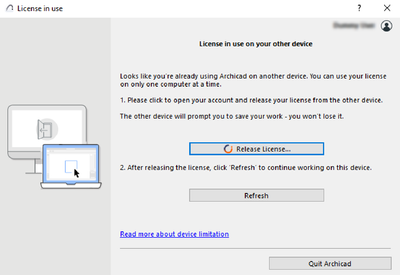
Release your license and select the "Refresh" button to transfer your license.
Disable license on device
You can use your cloud license on only one computer at a time, but thanks to a feature of the cloud license, your license can be released from one computer and activated on another over the internet.
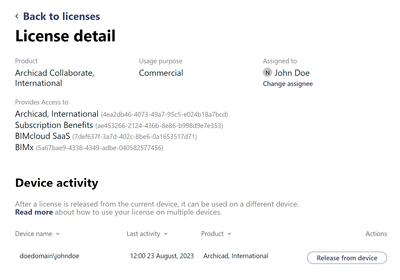
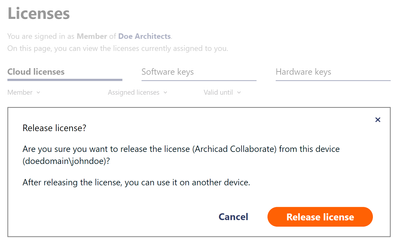
Visit https://graphisoftid.graphisoft.com and log in with your Graphisoft ID account. Under the "Licenses" tab on the Cloud Licenses page, you can see where your license is currently being used. Click the "Release from device" button to release the license from the current device.
Floating Licenses
Need more flexibility when deploying licenses across your team? Cloud licenses can be floating, which means they can be used as needed without being assigned to specific users.
Learn more here: Floating Licenses