![nordicbim_logo.png]](https://www.nordicbim.com/hs-fs/hubfs/Imported%20images/nordicbim_logo.png?height=40&name=nordicbim_logo.png)
In most cases, this is due to something that is far from the origin (the project's zero point). To avoid problems, crashes and others, it is important to find the elements that are far away to move them closer or remove them.
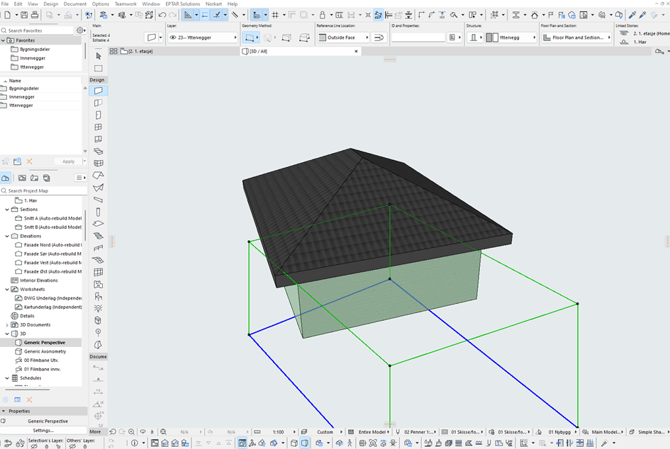
To identify problematic factors that may be causing this, you can proceed as described below.
These steps must be done both in Plan, 3D, sections/facades and design options (from version 27).
- Open Library Manager and remove ASU_LIBRARY if used
- Go to the ground floor in Project Map, (floor 0 in the Swedish template file)
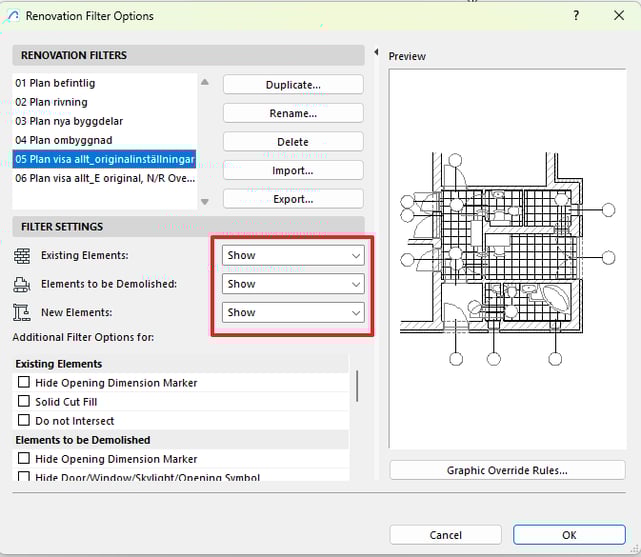
- Open Renovation Filter Options (Document > Renovation > Renovation Filter Options), and make sure Filter Settings is set to Show.
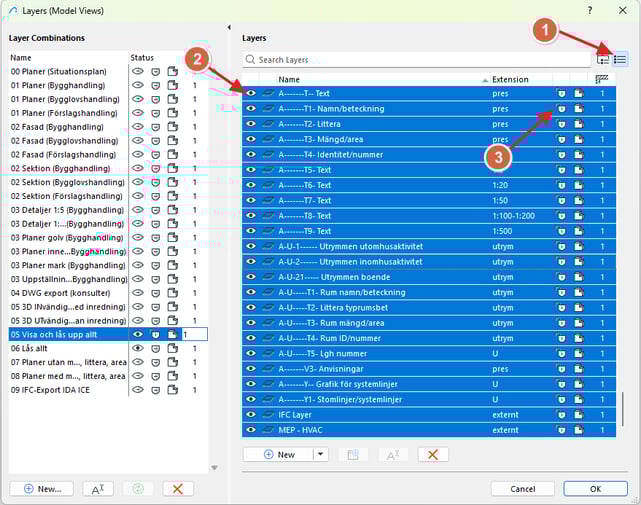
- Open Inventory. Unlock and make all layers visible by entering Layers. Make sure you have all the layers as list (1). Select all layers (ctrl+A or Command+A). Click an eye(2) to light up all layers. Do the same on the padlock (3) so that all locks are unlocked.
- Unlock locked items via Edit > Locking > Unlock All
- Next, go through all the floors you have in the project and tap Fit in Window on each floor to see if there's anything far away.

If you find any elements that are far away, these will need to be moved closer to the origin or removed. - If you are still experiencing problems after this, we recommend that you take open and repair on the file.
From Archicad 27 and newer, you also need to check all the different design options on all floors.
A more detailed description of the problem can be read about here.