![nordicbim_logo.png]](https://www.nordicbim.com/hs-fs/hubfs/Imported%20images/nordicbim_logo.png?height=40&name=nordicbim_logo.png)
If you receive the message "Missing Attributes" in Library Manager, you can use the following functions in the tool to import - or clear, delete and change attributes in the project.
Attribute Manager is found under Options > Element Attributes.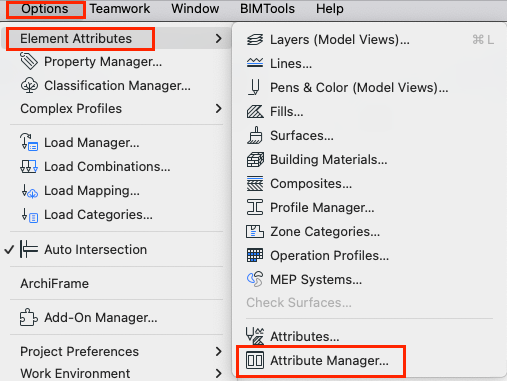
You can transfer attributes between the same or different Archicad versions, using, for example, .xml, a project file, or from a template file (.tpl). It is always wise to make a backup copy before doing any changes, then you can return to the original if something goes wrong.
In most cases, it is safest to export/import "By Index" (#). This is the number Archicad reads to identify the different attributes. Therefore, it is best to first compare the files' attribute setups so that you do not overwrite, for example, a Composite, Surface, or change favorites that is in use in the project. A link with more information at the end of this article.
To export, you select which attributes you want to include in the left column. Then in which way you want to export them, for example choose "By Index >>", and the attributes are transferred to the Temporary box in the right column.
You can export attributes from all tabs (attribute groups) at the top (Layers, Surfaces, Composites, etc.). If you have selected attributes from several tabs to export, go to the All tab and select the Export command at the top right corner - and save an .xml file to desired location.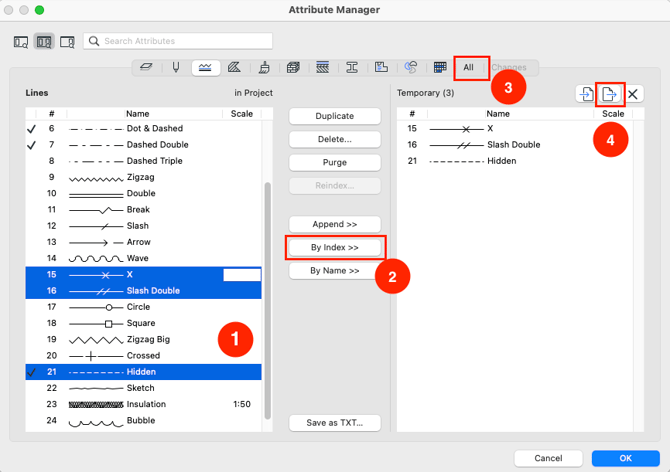
To import attributes into an Archicad file, do the following:
1. Have the file that needs the attributes open
2. Go to the Attribute Manager palette
3. Click on the Import icon, at the top right, of the palette
4. Navigate to the file you want to import from (.tpl/.xml etc.))
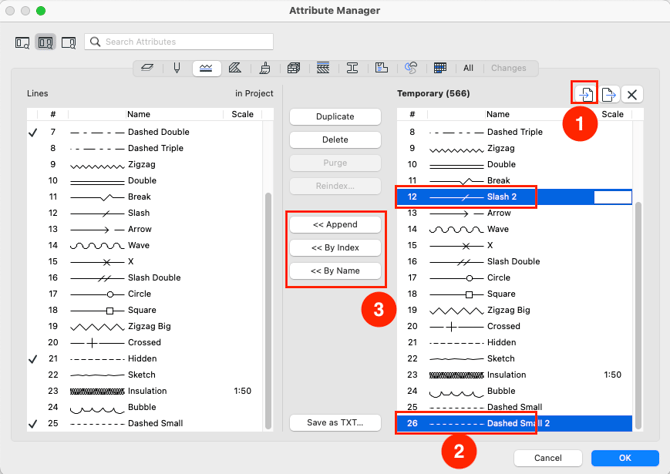
The attributes will appear under Temporary in the right column. Similarly to when exporting, you can choose what you want to transfer from the external file (from the right column to the left column during import) and choose in which way you want to import attributes.
Example: Transfer line types from another file to the active file with the << By Index-method.
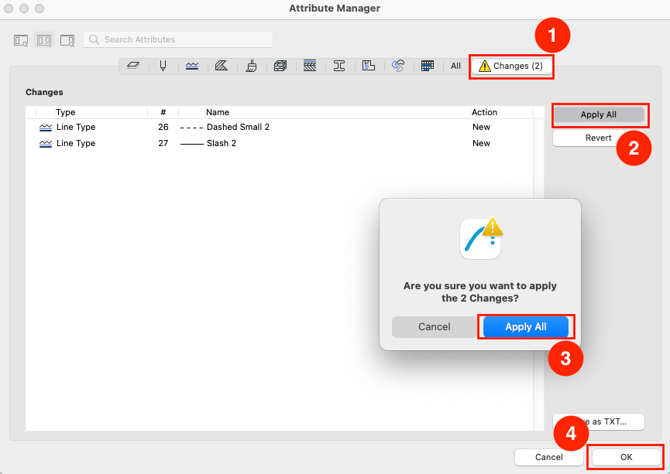
To complete the process, go to Changes at the top right of the palette and click Apply All.
More information about Archicad attributes:
Graphisoft's article about Attribute Manager
or attend our:
On demand free class about controlling attributes (In Swedish)