![nordicbim_logo.png]](https://www.nordicbim.com/hs-fs/hubfs/Imported%20images/nordicbim_logo.png?height=40&name=nordicbim_logo.png)
When you try to open an old file in Archicad 29, you will be prompted to choose whether to migrate the project.
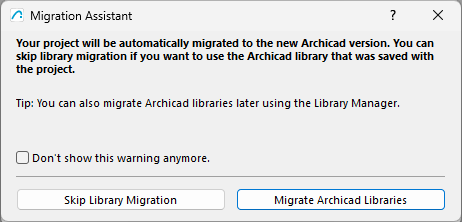
Even if you choose to migrate the Archicad libraries, the result will most likely be that a lot of black dots appear instead of the objects that were visible in earlier Archicad versions in your project.
.png?width=670&height=453&name=monolit29%20(9).png)
Open Library Manager by going to: File → Libraries and Objects → Library Manager
.png?width=457&height=803&name=monolit29%20(11).png)
There you will see that it says Missing under Archicad 29. There will be a link with the text:
“Download Monolith Migration Libraries” Click on it.
If the link does not open directly, you can also find the page by clicking the provided link.
.png?width=670&height=407&name=monolit29%20(2).png)
When you click the link, you will be redirected to Graphisoft’s website, where you can download the Monolith Migration Libraries.
.png?width=670&height=426&name=monolit29%20(3).png)
After downloading and installing, open the Library Manager and click Migrate Libraries, then click Migrate when the dialog appears.
.png?width=670&height=380&name=monolit29%20(7).png)
Now the migration library will be linked to the file.
.png?width=670&height=230&name=monolit29%20(8).png)
Klicka på OK. Nu skall prickarna försvunnit och rätt biblioteksdelar synas i modellen.
.png?width=670&height=463&name=monolit29%20(10).png)
Click OK. The dots should now be gone, and the correct library parts should appear in the model.