
In Archicad, Cloned Views and individually saved Views are both ways of storing display settings, often based on what needs to be displayed on the drawings or exported in other file formats.
The View Settings create a base definition for each singel saved view, but also for each view within the Clone Folder - each individual View in a cloned folder can be modified separately. This means that if a Project Map folder is cloned with the same specific filtered settings, the individual views located in that clone folder can be edited to a different filter setting than its "sibblings".
How to visually separate them
Cloned folder appearance have a curved arrow icon attached to the folder, singel saved views (plan, section, elevation, detail etc) does not.
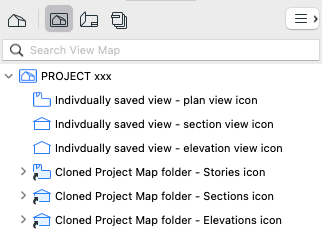
When should I save a single View?
A saved single view is most often used for customized views that needs to be represented with a specific appearance once: A view that does not have to be repeated for each story or elevation for example - the view is simply intentionally unique.
What is a cloned folder best used for?
A Clone folder is a folder in the Navigator's tab View Map that replicates the structure of a particular part of the Project Map (e.g., stories, sections, elevations). When you create a Clone Folder, Archicad automatically generates views for each element in the selected part of the Project Map, using the settings you specify.
This means that if you need to add another section, elevation or even story to your project, Archicad automatically generats a view with the same filtered settings as was given originally to the cloned folder.
The following applies to cloned view folders:
-
Automating view creation: Automatically generate views for all stories, sections, elevations, or details, without manually creating them one by one. If new elements (e.g., a new story or section) are added to the project map, corresponding views are automatically added to the clone folder.
-
Consistent view settings: Apply the same view settings (e.g., scale, layer combination, graphic overrides, model view options) to all views in the clone folder. Maintain uniformity across multiple drawings.
-
Managing changes efficiently: Update settings in the clone folder, and all views in the folder are updated automatically.
-
Documentation and publishing: Use clone folders to quickly organize views for publishing, ensuring the correct settings for all documentation.
-
Handling revisions: Clone folders simplify the process of managing revisions by automatically updating views as new elements are added or settings change.
If you've also been smart with how you set up the documentation – Archicad will even add the new drawings to the project's Publisher Sets.